Skip to content
BotLunarBotLunar
Connect Discord

27 steps, about 2 hours in total

From signing in to your first campaign.

Every step, in order, written for somebody who runs the marketing and does not write code. What to do, why it matters, exactly where to click, what you should see, and what to do when it goes wrong. You do not have to do it all in one sitting: nothing here is remembered separately, so leaving and coming back never loses your place.

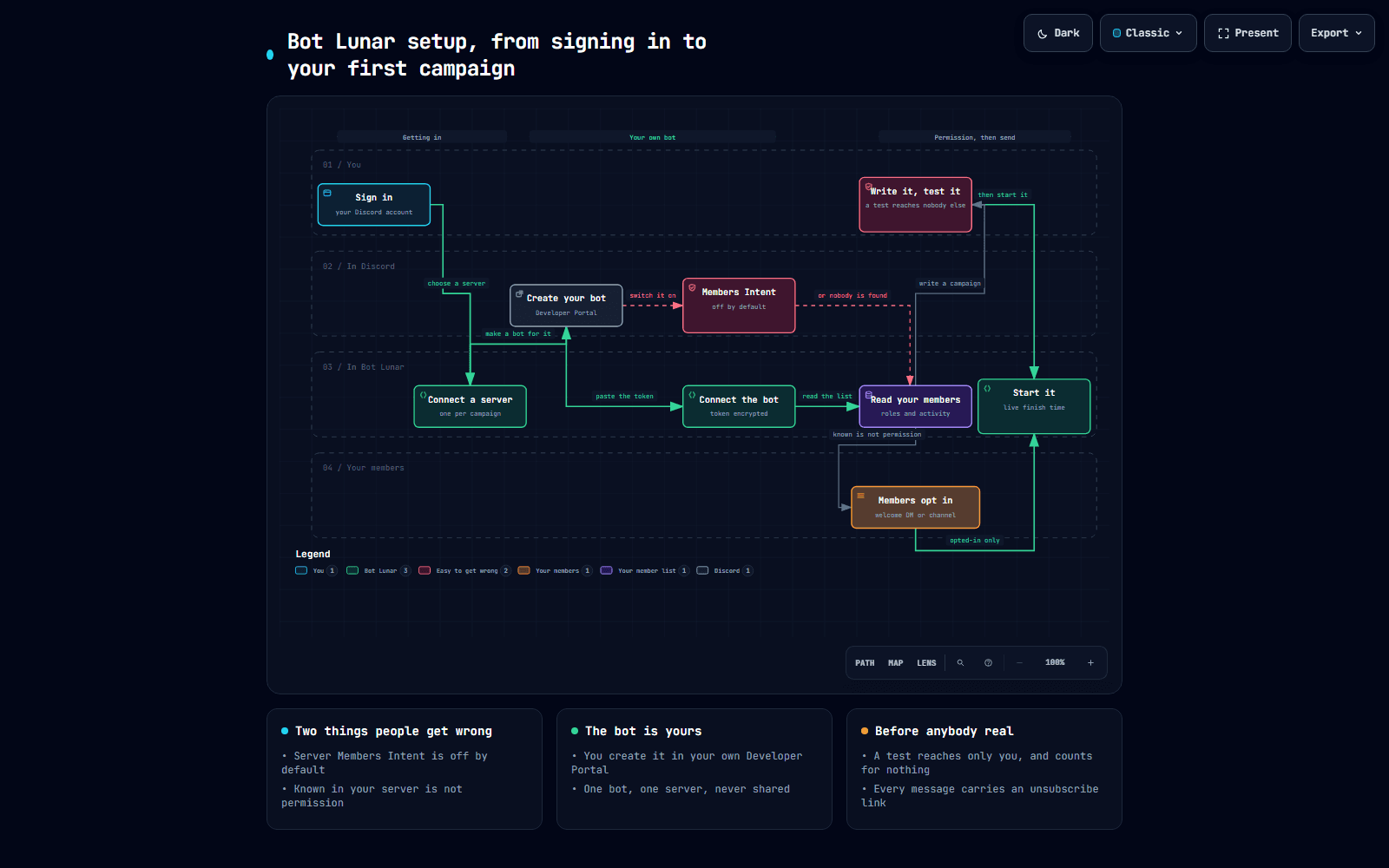
The whole journey, on one screen

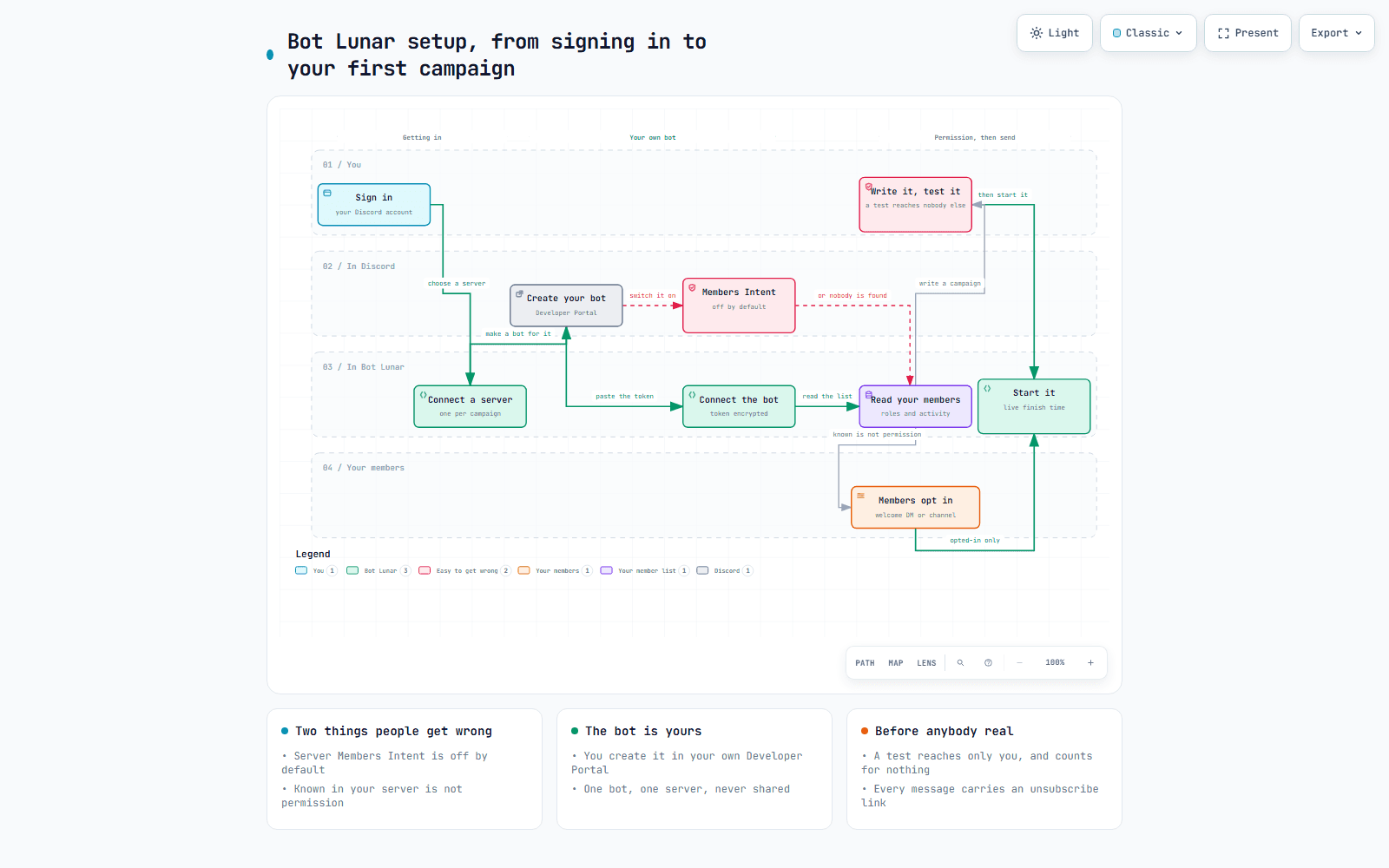
The green line is the path. The two red boxes are the things people get wrong: a Discord switch that is off by default and gives no error, and the difference between knowing who is in your server and being allowed to message them.

The setup journey: sign in, connect a server, create your bot, connect it, read your members, members opt in, then start the campaign

Open the interactive version to trace one path at a time, or to export it.

Part one, getting in

Signing in, choosing what you are on, and connecting the server you want to message. About ten minutes, and none of it touches a member.

  1. 1

    Sign in with Discord

    2 min

    There is no separate BotLunar password to invent or forget. You sign in with the same Discord account you use to run your server, which is also how we know which servers you actually manage. Signing in does not give us your bot, does not let us post as you, and does not read your messages.

    What to do

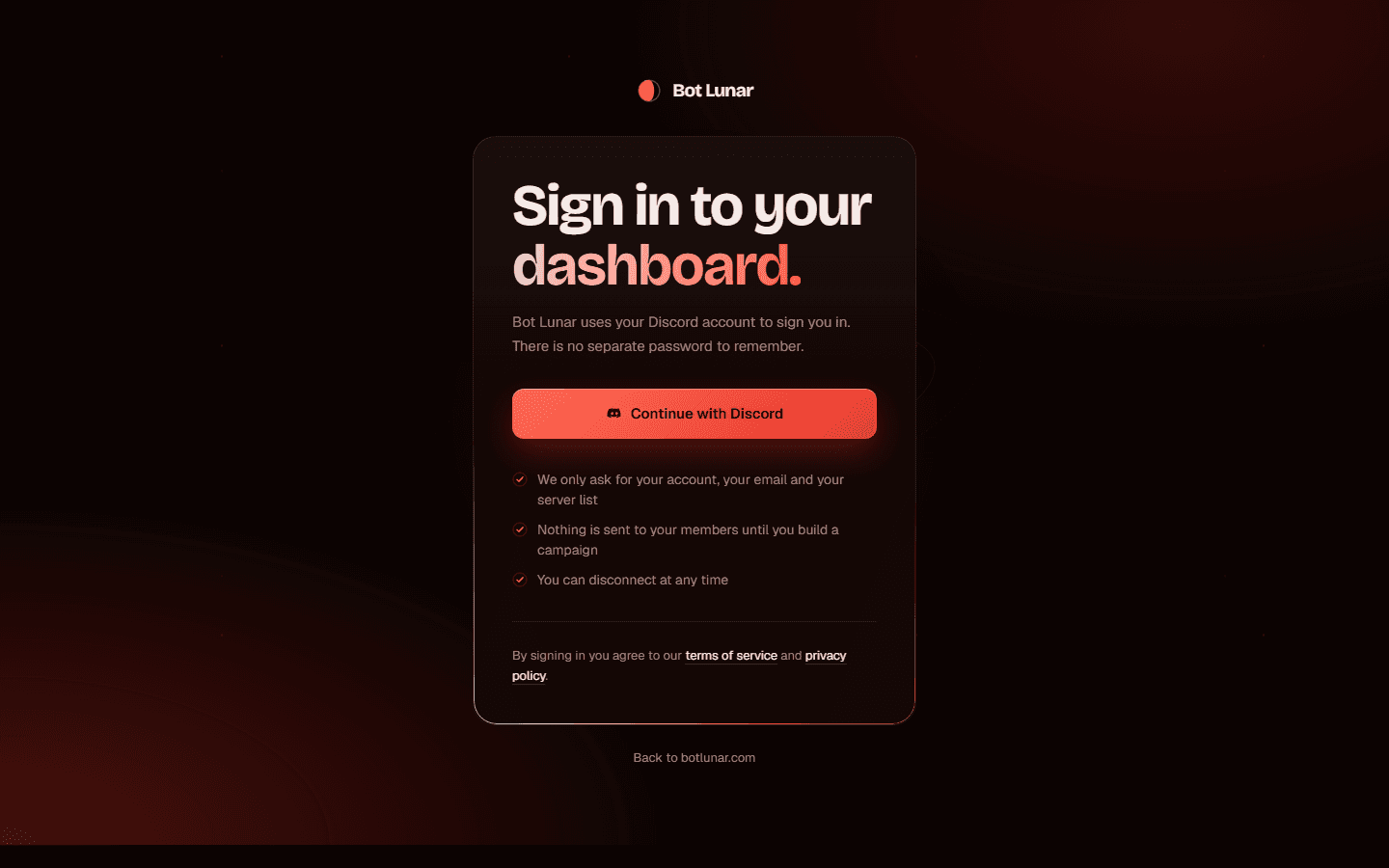
    1. 01Go to botlunar.com and press Connect Discord at the top right.
    2. 02Discord shows you its own consent screen, listing what BotLunar is asking for. Read it.
    3. 03Press Authorise.
    4. 04You land on the BotLunar dashboard.

    Where to click

    The Connect Discord button in the top right of botlunar.com, and then Discord's own green Authorise button.

    What you should see

    The dashboard, with your Discord name in the top right, and a setup checklist showing one step done out of nine.

    The BotLunar sign in page with the Connect Discord button

    If it goes wrong

    Discord says the redirect URI is invalid.
    That is our configuration and not something you can fix. Send us the exact address you were on when it happened and we will correct it.
    You get sent back to the sign in page instead of the dashboard.
    Your browser is blocking our cookie. Try it in a normal window rather than a private one, and check that you have not blocked all third party cookies for botlunar.com.
    You signed in with the wrong Discord account.
    Press your name in the top right, sign out, and sign in again. Use the account that actually manages the server, because the account you sign in with is the one a test send goes to.
  2. 2

    Choose a plan, or start the free trial

    3 min

    Lunar Weekly and Lunar Daily are the same product at two speeds. Nothing is locked to the more expensive one: the shared inbox, the templates, tracked links, analytics and the two way conversations are all on both. What differs is how often you may message the same member, once in any 7 days or once in any 24 hours, and how many bots, campaigns and megabytes of media you get. Pick the speed your audience will tolerate rather than the one with the most features, because they have the same features. A server over 50,000 members is Lunar Enterprise instead, priced for you by our team: ask from the pricing page.

    What to do

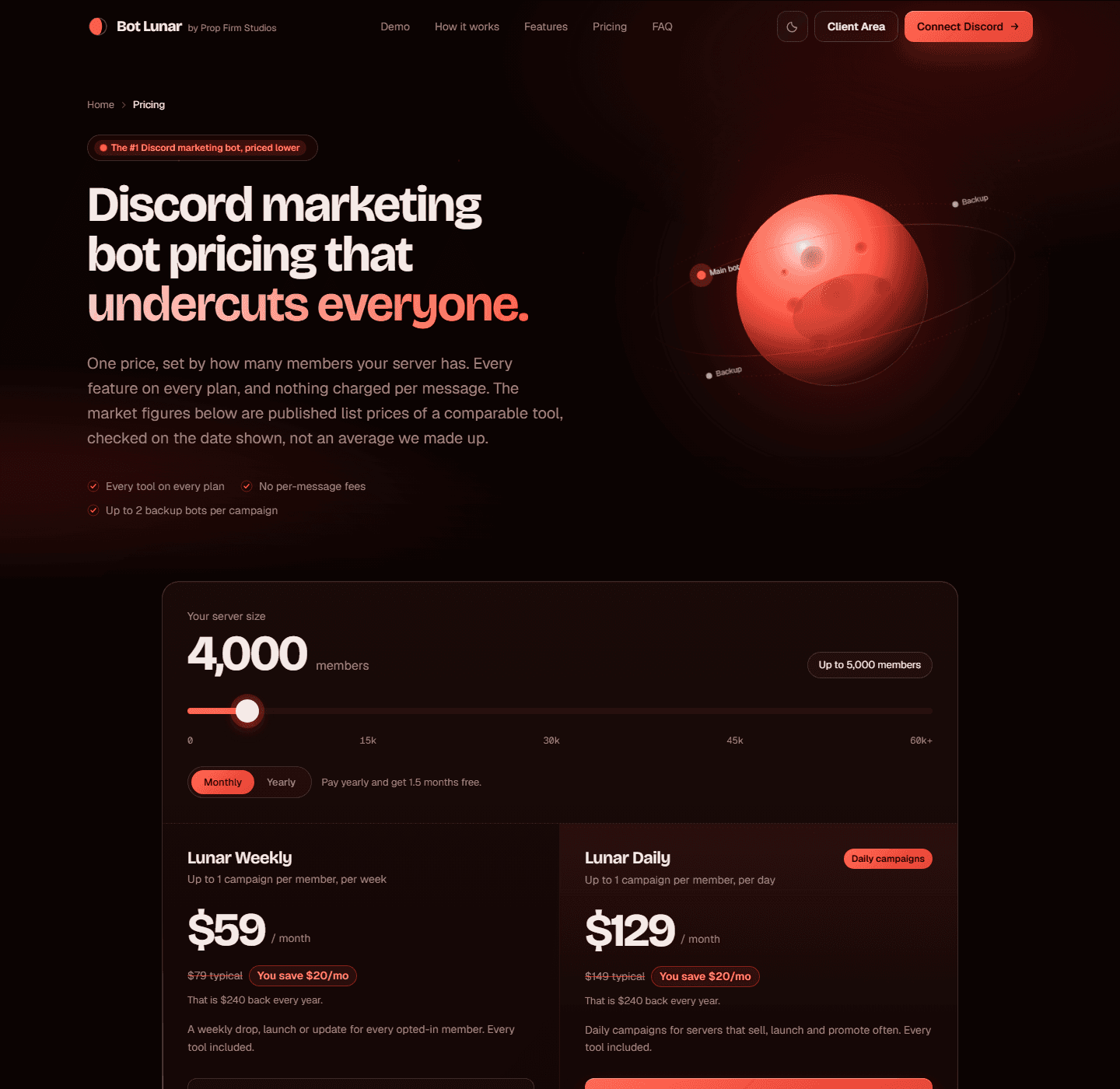
    1. 01Open the Pricing page and read the two columns side by side.
    2. 02Decide how often you would actually want to message the same person. Once a week is enough for most prop firms. Once a day is for a server where people expect daily signals.
    3. 03Choose Lunar Weekly if you are unsure. You can move up later without losing anything.

    Where to click

    The Pricing link in the site header, then the button under the column you want.

    What you should see

    Both plans, their prices, and every allowance that differs between them written on the page rather than found out later.

    The pricing page with both plans side by side

    If it goes wrong

    There is no way to actually pay yet.
    That is expected right now and not a fault. Billing through Paddle is not live, so nothing can be charged and no card is asked for. Everything in this guide works without it. When billing does go live, the seven day free trial on Lunar Weekly will say the exact date and time it ends, the amount that will be charged and how to cancel, all before a card is entered.
    You cannot tell which plan you are on.
    Open Settings in the dashboard. It names your plan and lists every allowance with how much of it you have used.
  3. 3

    Connect your Discord server

    3 min

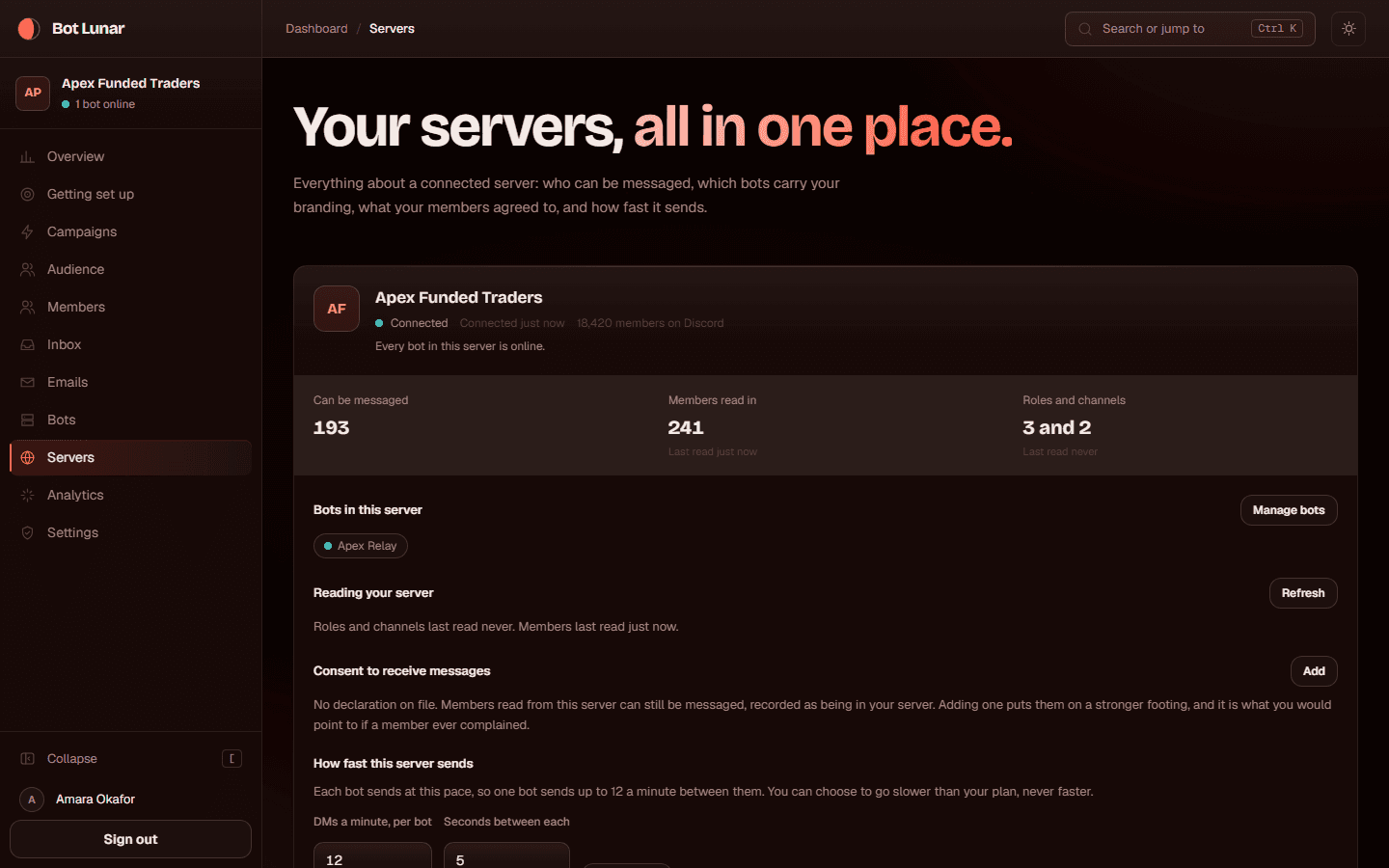
    A campaign targets exactly one server. Connecting it is how we learn your roles, your channels and eventually your members. It does not message anybody, and it does not give us permission to. A campaign never spans two servers, on purpose: one message written for two different audiences is how a message ends up written for neither.

    What to do

    1. 01In the dashboard, press Connect a server.
    2. 02Discord lists the servers where you have Manage Server. Choose the one you want to run campaigns in.
    3. 03Press Authorise.
    4. 04You come back to BotLunar with the server connected.

    Where to click

    The Connect a server button on the dashboard, or Servers in the left sidebar and then Connect another.

    What you should see

    Your server's name on the Servers page, with its member count as Discord reports it, and the setup checklist moving to the next step.

    The connect a server screen listing Discord servers

    If it goes wrong

    Your server is not in the list.
    Discord only offers servers where your account has Manage Server. Ask the server owner to give you that permission, or have them do this step.
    You connected the wrong server.
    Open Servers and connect the right one as well. You can have more than one connected, and the sidebar lets you switch between them. Removing the wrong one does not delete anything you have done in the right one.

Part two, your own bot

Every message comes from a bot you created, in your own Discord Developer Portal, with your name and your picture on it. We never own or share bots between customers. This is the longest part of the setup and the only part that looks technical. It is about fifteen minutes, once.

  1. 4

    Create your bot in the Discord Developer Portal

    6 min

    This step happens in Discord rather than in BotLunar, so there is no screenshot of ours for it. Our screenshot script photographs our own app and cannot photograph somebody else's.

    Members see the bot, not us. It carries your name, your avatar and your nickname in your server, so a message reads as coming from you. It also means the bot is yours: your rate limits, your reputation, your account. If we ran one bot for everybody, one complaint anywhere would take every customer's sending down with it, and past a hundred servers Discord would require verification of a single application shared between businesses that have nothing to do with each other.

    What to do

    1. 01Open discord.com/developers/applications in a new tab, signed in as the same Discord account.Open discord.com/developers/applications in a new tab, signed in as the same Discord account.
    2. 02Press New Application in the top right.
    3. 03Give it the name your members should see. Your brand name is usually right. Not BotLunar.
    4. 04Tick the box agreeing to Discord's developer terms, then press Create.
    5. 05On the General Information page, upload an app icon. This becomes the bot's picture in your members' direct messages, so use your logo.
    6. 06In the left sidebar, press Bot.

    Where to click

    discord.com/developers/applications, the New Application button, then Bot in the left sidebar of the application you just made.

    What you should see

    A page headed Bot, with your bot's username, its icon, and a row of toggles further down called Privileged Gateway Intents.

    If it goes wrong

    New Application is greyed out or you have hit a limit.
    Discord limits how many applications one account may have. Delete an old unused one, or create this one on another account you control and keep the login safe.
    You cannot find the Bot page.
    You are probably still on the list of applications rather than inside one. Click your application's name first, then Bot appears in the left sidebar.
    The name is wrong and members would see it.
    Change it on the Bot page under Username, and change the application name on General Information too. You can also set a per server nickname later in BotLunar, under Branding on the Bots page, which is what members in that server actually see.
  2. 5

    Switch on the Server Members Intent

    2 min

    This step happens in Discord rather than in BotLunar, so there is no screenshot of ours for it. Our screenshot script photographs our own app and cannot photograph somebody else's.

    This is the single most common thing to get wrong, and it fails silently. Without it, Discord will not tell us who is in your server, so BotLunar reads your member list and finds nothing. The screen then says zero members, which looks exactly like the product being broken and is in fact one switch being off. It is off by default for every new bot, and no invite link can turn it on. Only you can, here.

    What to do

    1. 01Still on the Bot page, scroll down to Privileged Gateway Intents.
    2. 02Switch on Server Members Intent.
    3. 03Also switch on Message Content Intent, which is what lets the bot read a member's reply so it appears in your inbox.
    4. 04Press Save Changes at the bottom.

    Where to click

    The Bot page in the Discord Developer Portal, the section headed Privileged Gateway Intents, the toggle labelled Server Members Intent.

    What you should see

    Both toggles blue rather than grey, and a Save Changes bar confirming. If you reload the page they should still be on.

    If it goes wrong

    Discord says the intent needs approval.
    That only applies to bots in more than a hundred servers. Yours is in one. If you genuinely see this, your bot has been added to many servers and should not be reused for this.
    You forgot, and BotLunar found no members.
    Come back here, switch it on, press Save Changes, then in BotLunar open the Bots page and press Check now, and then read your members again. Nothing is lost.
  3. 6

    Copy the bot token, and keep it secret

    3 min

    This step happens in Discord rather than in BotLunar, so there is no screenshot of ours for it. Our screenshot script photographs our own app and cannot photograph somebody else's.

    The token is the bot's password. Anybody who has it can send messages as your bot to anybody it can reach, and can do it from anywhere, without your account. Treat it like a bank card number. We encrypt it the moment you paste it, never write it to a log, never put it in an error message, and never show it again beyond its last four characters. Nobody at BotLunar can read it back, including us.

    What to do

    1. 01On the Bot page, find the Token section and press Reset Token. A brand new bot has no visible token until you do.
    2. 02Confirm. Discord shows the token once, and only once.
    3. 03Press Copy.
    4. 04Do not paste it into Discord, a document, an email or a message to anybody, including us. Go straight to the next step and paste it there.

    Where to click

    The Bot page, the Token section, the Reset Token button, then Copy.

    What you should see

    A long string of letters, numbers and two dots, with a Copy button beside it.

    If it goes wrong

    You closed the page before copying it.
    Press Reset Token again. The old one stops working immediately, which is fine because nothing is using it yet.
    You pasted it somewhere public by accident.
    Press Reset Token straight away. That kills the leaked one. Then connect the new token in BotLunar. Discord also scans public places for tokens and resets them for you, which is a safety net rather than a plan.
    Somebody asks you for your token, including somebody claiming to be us.
    Refuse. We never need it and never ask. You paste it into the form yourself and nobody sees it after that.
  4. 7

    Connect the bot to BotLunar

    2 min

    This is the moment BotLunar can act as your bot. We check the token with Discord straight away, so you find out immediately whether it works rather than when a campaign fails. We also check, at the same moment, that the bot is not already connected somewhere else in BotLunar, because a bot belongs to exactly one server in exactly one workspace.

    What to do

    1. 01In BotLunar, press Bots in the left sidebar.
    2. 02Press Connect a bot, or Add another bot if you already have one.
    3. 03Paste the token into the Bot token field.
    4. 04Press Connect bot.

    Where to click

    Bots in the left sidebar, the Bot token field, then the Connect bot button.

    What you should see

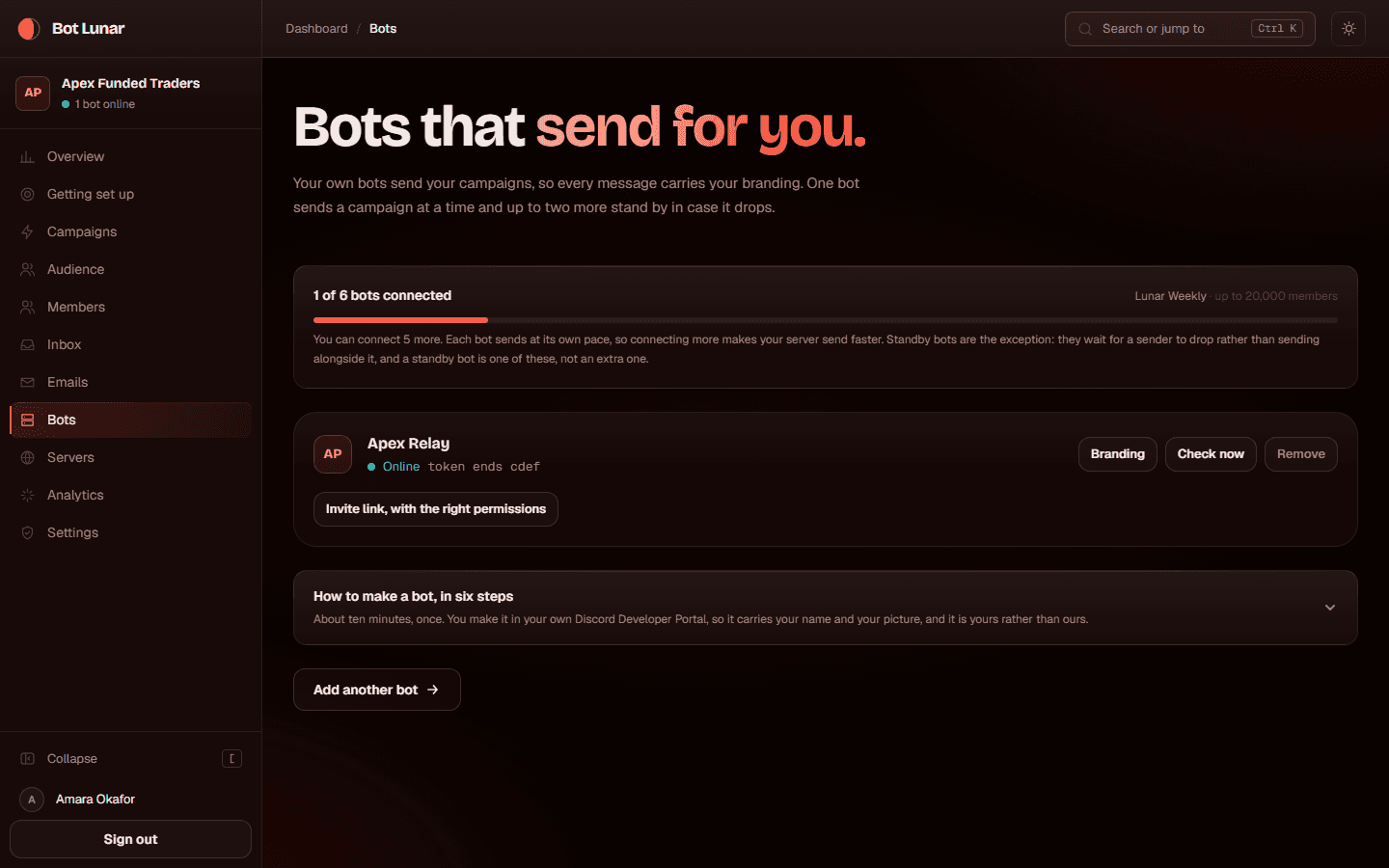
    Your bot appearing in the list with its real name and picture, read from Discord. Its status will say Offline or Not checked yet until it is actually in your server, which is the next step.

    The connect a bot form with the bot token field

    If it goes wrong

    Token rejected.
    Either it was copied incompletely or it has been reset since. Go back to the Bot page in the Developer Portal, press Reset Token, copy the whole thing, and paste it again. Make sure you copied the bot token and not the application's Public Key or Client Secret, which look similar and are not it.
    It says this bot is already connected somewhere else.
    That bot is in use in another server or another workspace inside BotLunar, and a bot may only ever be connected to one. We will not tell you where, because that would leak another customer's setup. Create a second bot in the Developer Portal for this server. It takes five minutes and it is the right answer: separate bots mean separate rate limits, which is also faster.
    You have hit your bot allowance.
    Your plan and your server size decide how many bots you may connect. Settings shows the number and how much you have used. Remove one you are not using, or move up a plan.
  5. 8

    Invite the bot into your server, with the right permissions

    3 min

    A valid token is not enough. The bot has to actually be a member of your server before it can read your roles, post in a channel or see a reply. BotLunar builds the invite link for you with exactly the permissions it uses and nothing more, so the Discord consent screen you are about to read is honest: every box on it is used by something you will actually do. Sending a direct message, incidentally, needs no server permission at all, which is why the list is shorter than people expect.

    What to do

    1. 01On the Bots page, press Add it to your server on the bot's row. BotLunar generates the link with the right permissions and your server already chosen.
    2. 02Discord opens and shows you the permissions being asked for. Read them.
    3. 03Leave every box ticked, then press Authorise.
    4. 04Come back to BotLunar and press Check now on the bot's row.

    Where to click

    The Add it to your server link on the bot's row on the Bots page, then Discord's Authorise button, then Check now back in BotLunar.

    What you should see

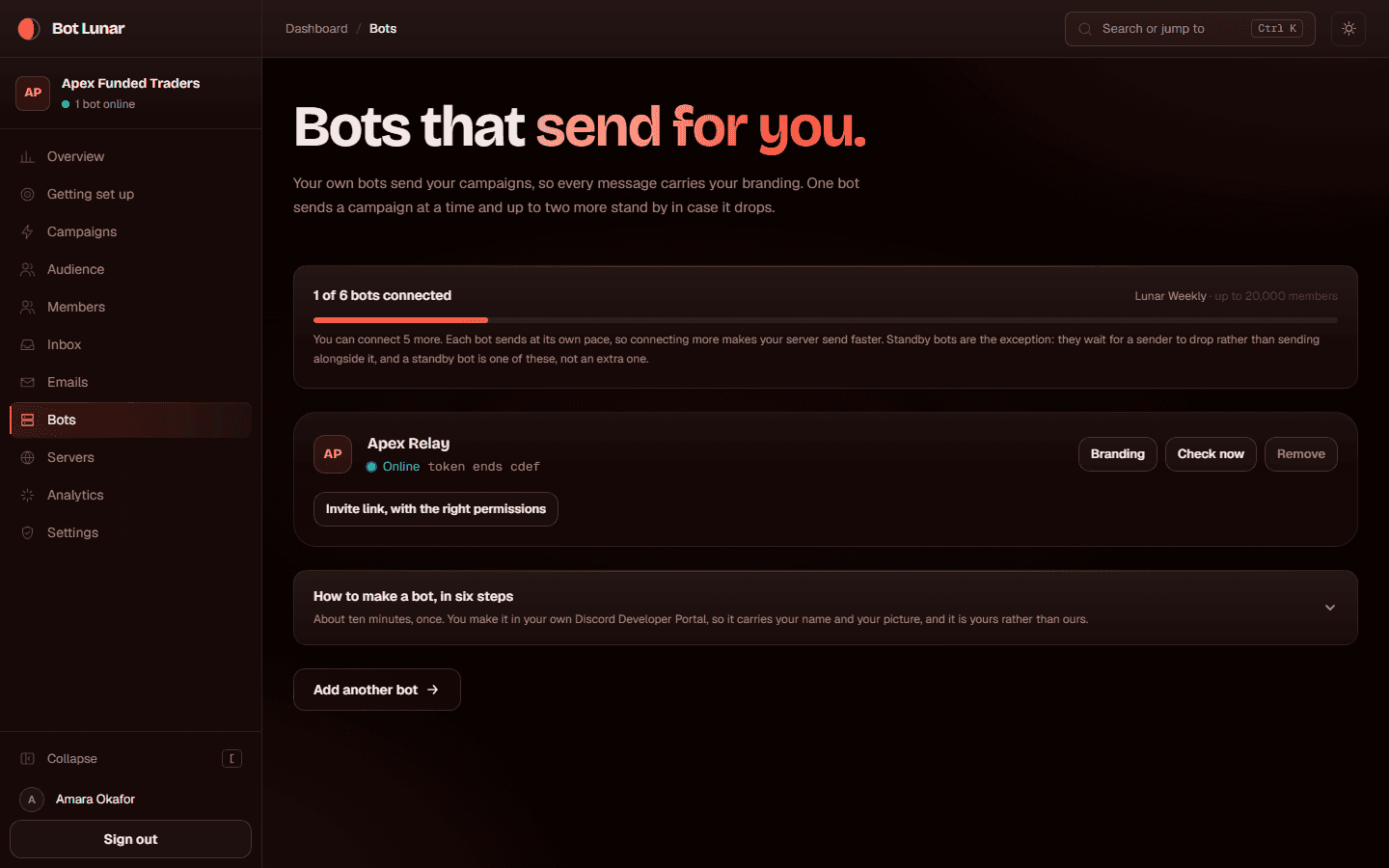
    The bot's status turning to Online, in green, on the Bots page.

    The bots page with a bot online

    If it goes wrong

    It says Missing permissions and names them.
    Somebody unticked a box on the way in, or the bot's role was changed afterwards. The message names each missing permission and what it is for. Either grant those to the bot's role in Discord, under Server Settings, Roles, or use the invite link again, which asks for all of them.
    It stays Offline after Check now.
    The bot is not in the server. Use the invite link again and make sure you pick the same server you connected to BotLunar.
    The bot is also in other Discord servers.
    BotLunar warns you about this on the Bots page and will only ever read or send in the one server it is connected to here. It is still worth removing it from servers that have nothing to do with this, because a bot doing several unrelated jobs is a bot whose rate limits you cannot reason about.
  6. 9

    Read your members and roles from Discord

    4 min

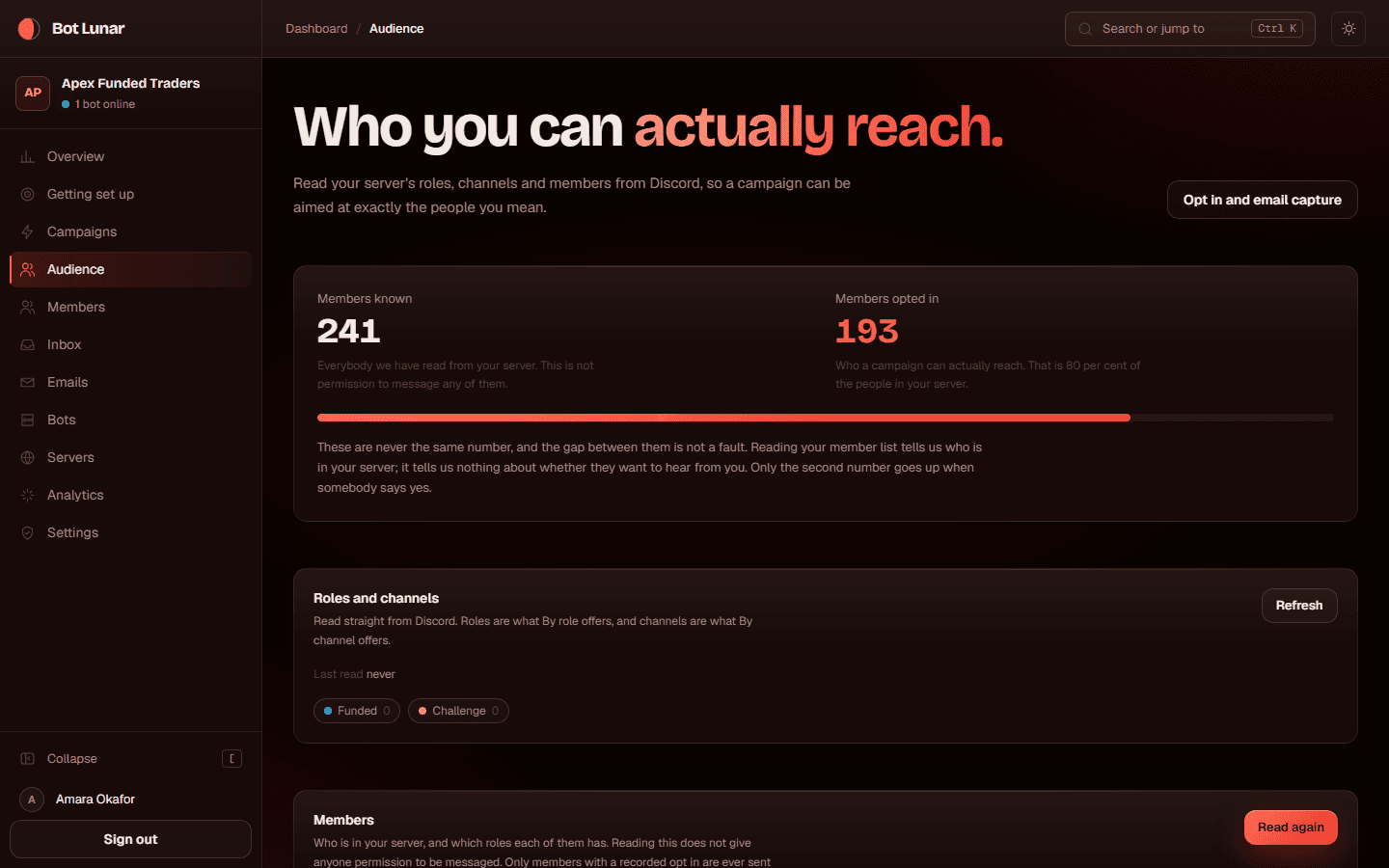
    This is how BotLunar learns who is in your server, which roles they hold, which channels they can see and how recently they have been active. All of that is what makes an audience possible: by role, by channel, most active first. Reading somebody does not give you permission to message them, and it is important to hold those two apart in your head, because the next part of this guide is entirely about the difference.

    What to do

    1. 01Press Audience in the left sidebar.
    2. 02Press Read members.
    3. 03Wait. A large server takes a few minutes, because Discord hands members over in pages and we honour the pace it asks for.
    4. 04When it finishes, look at the two numbers at the top: members known, and members opted in.

    Where to click

    Audience in the left sidebar, then the Read members button.

    What you should see

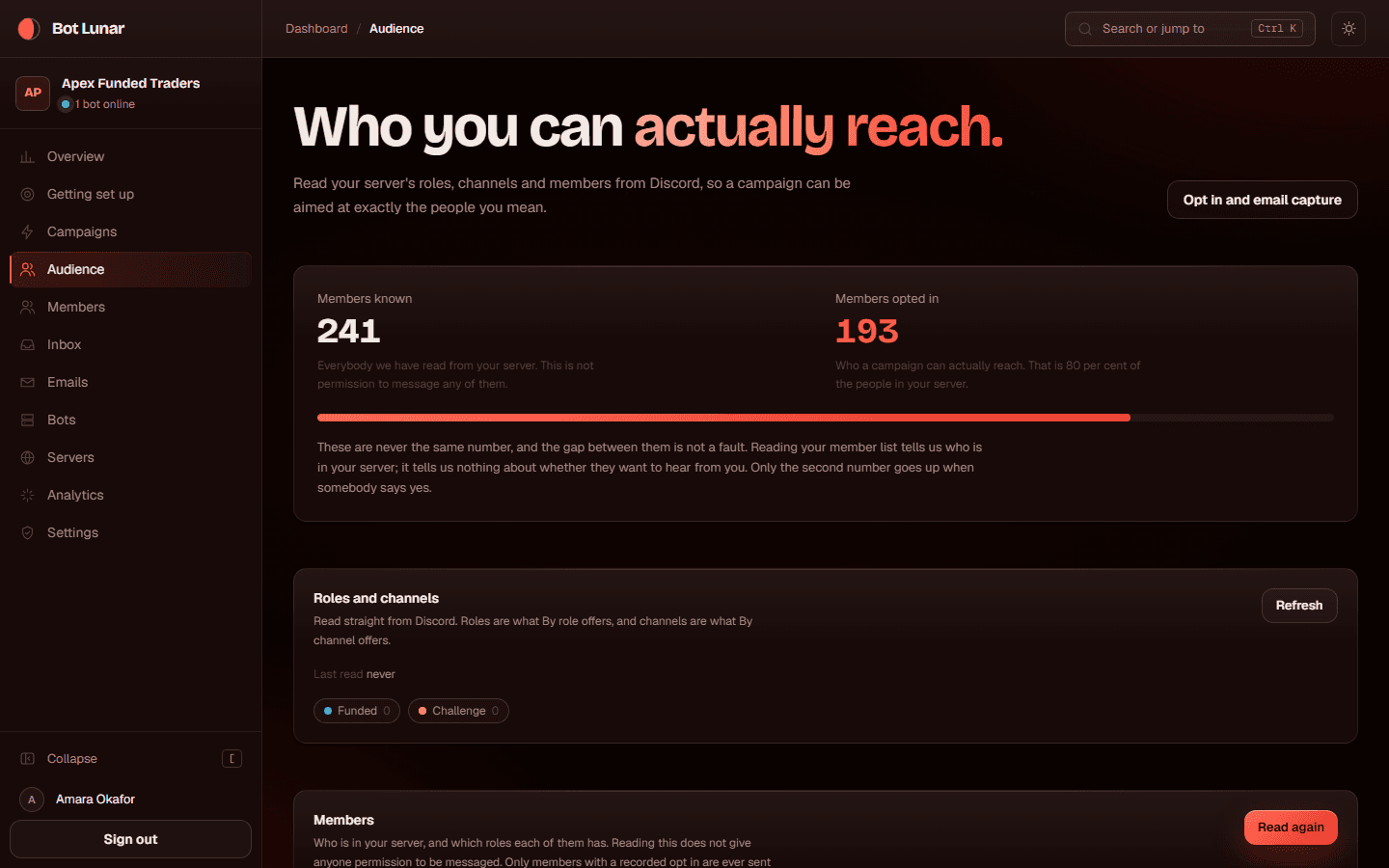
    A count of members read, the date it last ran, and your roles and channels now available when you build an audience. The opted in number will be zero, and that is correct at this stage.

    The audience page after reading members from Discord

    If it goes wrong

    It found no members at all.
    This is the Server Members Intent being off, almost every time. Go back to the Developer Portal, switch it on, press Save Changes, then Check now on the Bots page, then read your members again.
    It found fewer members than Discord says you have.
    Discord's own total counts everybody including bots and people who have left the guild in Discord's own cache. Ours counts the members Discord actually handed us. A gap of a few per cent is normal. A gap of ninety per cent is the intent being off.
    It says Discord asked us to slow down.
    Nothing is wrong. We wait exactly as long as Discord asked and then carry on. Leave the page open or come back later, the run continues.

Part three, permission

The part that decides whether any of this is allowed. Knowing somebody is in your server is not permission to message them. This is how members give it, and how you record what it rests on. Half an hour, and it keeps paying you back for ever.

  1. 10

    Turn on Community and rules screening in Discord

    5 min

    This step happens in Discord rather than in BotLunar, so there is no screenshot of ours for it. Our screenshot script photographs our own app and cannot photograph somebody else's.

    Rules screening is the checkbox screen a new member sees before they can talk. It is the one place in Discord where a member reads something and agrees to it, which makes it the strongest thing you can point at if anybody ever asks why you messaged them. It also unlocks the welcome flow: Discord only tells a bot that somebody has finished screening if screening exists.

    What to do

    1. 01In Discord, open Server Settings, then Enable Community, and follow Discord's steps. It asks you to set a rules channel and a moderation channel.
    2. 02Then open Server Settings, Membership Screening.
    3. 03Add your rules. Keep them short.
    4. 04Add one line about direct messages, using the wording in the next step.
    5. 05Save.

    Where to click

    Discord, Server Settings, Enable Community, then Server Settings, Membership Screening.

    What you should see

    A new member joining now sees your rules and has to tick to agree before they can post. You can check it by joining with a second account.

    If it goes wrong

    Enable Community is not there.
    You need Manage Server. Ask the server owner, or have them do it.
    You do not want rules screening.
    Then skip it, and use the channel opt in button instead, three steps down. It reaches fewer people but it is a real opt in from the member, which is what matters. Without screening you cannot declare a server wide basis, so every member you message will have said yes themselves.
  2. 11

    Write the opt-in wording

    6 min

    No screenshot for this one. This one is writing rather than a screen, and it lands in three places, one of which is Discord's.

    This is the sentence everything else rests on. It has to say who will message them, what about, how often, and how to stop. Vague wording is worse than no wording, because it looks like consent and is not. Write it once, use the same wording in your rules screening, your welcome message and your channel button, so a member who reads two of them does not get two different promises.

    What to do

    1. 01Write one sentence naming your server, what you will send, and roughly how often. For example: Tick to let Apex Funded Traders send you direct messages about challenges, payouts and new account sizes, about once a week.
    2. 02Add how to stop: You can unsubscribe from any message, with one click.
    3. 03Do not promise a figure. No payout numbers, no percentages, no results. Your templates leave those blank on purpose.
    4. 04Use the same wording in all three places: Discord's rules screening, the welcome message and the channel button.

    Where to click

    Discord's Membership Screening for the rules line, and BotLunar's Audience, Opt in page for the welcome message and channel button.

    What you should see

    The same promise in all three places, word for word.

    If it goes wrong

    You are not sure the wording is enough.
    Name the server, name the subject, say roughly how often, and say how to stop. If your sentence has all four, it is doing its job. If you operate in the EU or handle EU members, have your own lawyer read it, because we cannot give you legal advice and would be wrong to try.
    You already have members and want to change the wording.
    Change it. Members who opted in under the old wording keep the record of what they actually agreed to, because we store the wording that was in force when each one said yes rather than the current one.
  3. 12

    Declare what your rules screening asks

    2 min

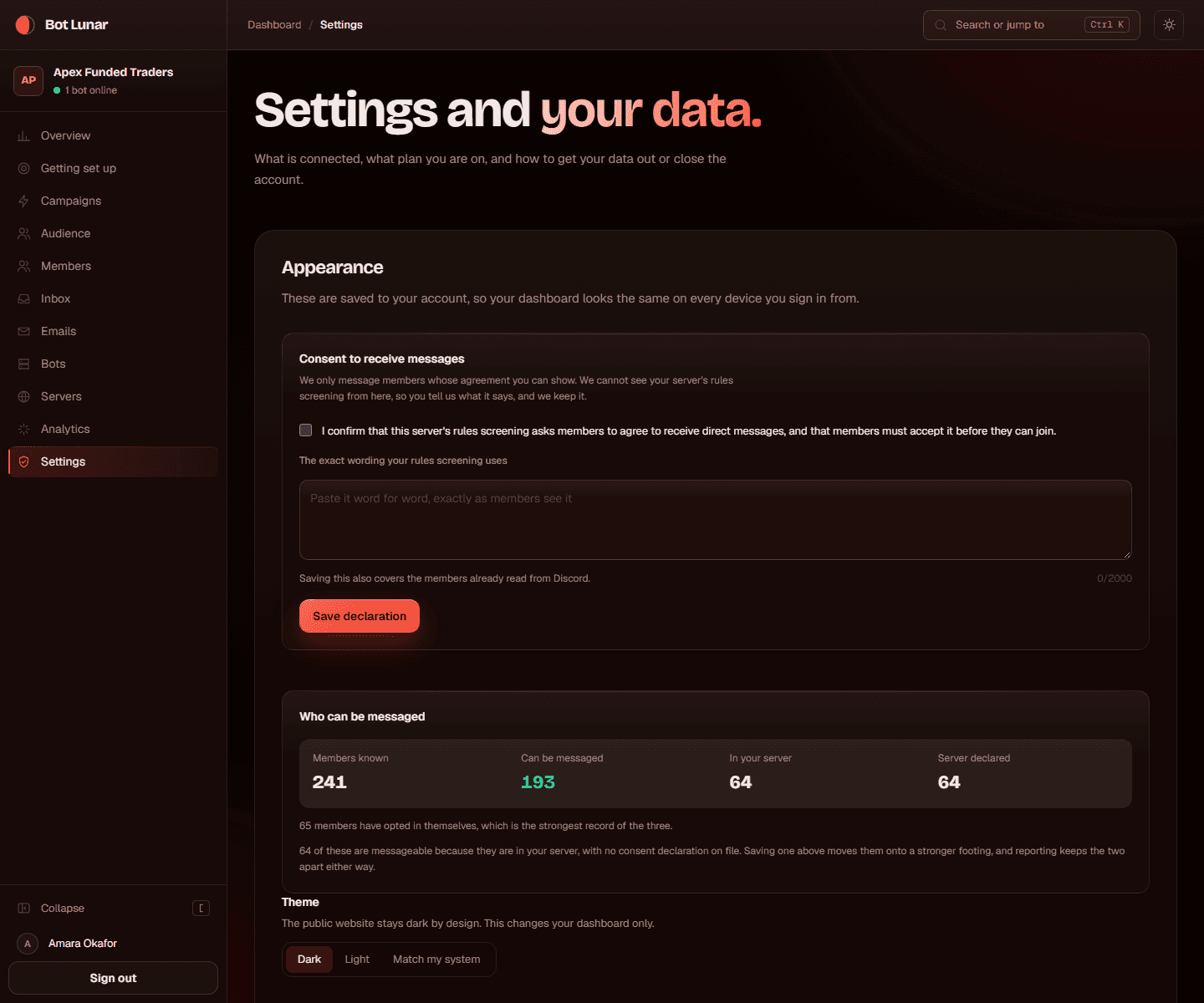
    If your rules screening now asks members to agree to direct messages, telling us so in writing lets you message the members you already have, rather than waiting for each of them to press a button. It is your word about your own server, which makes it the weaker of the two kinds of permission, and we never merge it with the stronger kind in any report. It is worth having while you build the stronger one.

    What to do

    1. 01Press Settings in the left sidebar.
    2. 02Find the section about what your rules screening asks.
    3. 03Read what you are declaring. It is a statement about your own server, and you are responsible for it being true.
    4. 04Tick it and save.

    Where to click

    Settings in the left sidebar, the rules screening declaration.

    What you should see

    The date you declared it, and your members' permission basis showing as Your rules screening declaration rather than Being in your server.

    The settings page with the rules screening declaration

    If it goes wrong

    Settings does not mention rules screening at all.
    You have not connected a server yet. The declaration is about one server, so it only appears once there is one. Go back to step three.
    Your rules screening does not actually mention direct messages.
    Then do not declare it. Add the line to your screening first. A declaration that is not true is the one thing here that could actually get you into trouble.
  4. 13

    Set up the welcome message and the welcome DM

    8 min

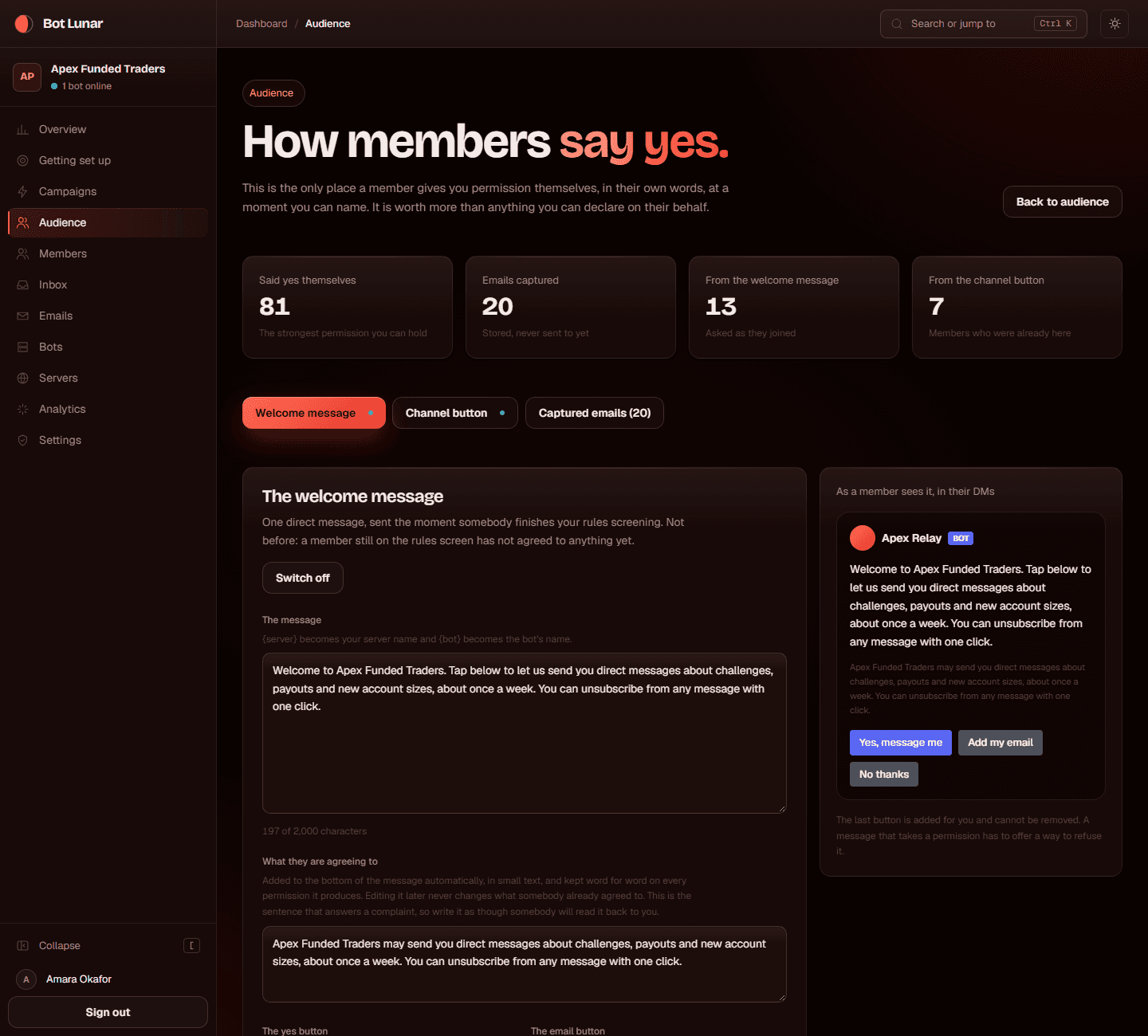
    One direct message to each new member the moment they finish your rules screening, asking them properly, with a button. This is how you build permission that came from the member rather than from you, and it is the strongest basis there is. It only reaches people who join from now on, which is why the next step exists for the members you already have.

    What to do

    1. 01Press Audience in the left sidebar, then Opt in.
    2. 02Choose the Welcome message tab.
    3. 03Write the message. Use the wording you settled on. Keep it short, because it arrives in a direct message from a stranger.
    4. 04Check the preview on the right, which shows it as a member sees it in their DMs.
    5. 05Switch it on.

    Where to click

    Audience, then Opt in, then the Welcome message tab, then the switch at the top of that panel.

    What you should see

    The panel saying it is on, and new members getting it. The counter for From the welcome message starts climbing as people join and press the button.

    The welcome message panel with its preview

    If it goes wrong

    The page just says "Connect a Discord server first".
    You have jumped ahead. The welcome message belongs to a server, so this screen waits until one is connected. Go back to step three, then come here.
    It will not let you switch it on.
    The panel says what is missing before it will let you. Usually a bot that is not online, or an empty message. Fix the named thing and the switch becomes available.
    It is on but nobody is getting it.
    Two causes. Rules screening is not enabled, so Discord never tells us anybody finished it. Or the reply listener is not connected, which the panel says. New members joining a server with no screening are not announced to us in a way we can act on.
    Members have their DMs closed.
    Nothing can be done about that, by us or by you. Discord lets anybody refuse direct messages from a server. Those members can still opt in with the channel button in the next step, which is one reason to do both.
  5. 14

    Post the opt-in button in a channel

    5 min

    The welcome message only reaches people who join from now on. Everybody already in your server needs a way to say yes, and this is it: one message in a channel with a button, that stays there and keeps working. This is usually where the first few hundred opted in members come from.

    What to do

    1. 01Still on Audience, Opt in, choose the Channel button tab.
    2. 02Pick the channel. Announcements or a general channel works; a channel most members cannot see does not.
    3. 03Write the message, using the same wording again.
    4. 04Check the preview, which shows it as a member sees it in the channel.
    5. 05Press post.

    Where to click

    Audience, then Opt in, then the Channel button tab, then the channel picker and the post button.

    What you should see

    The message live in your Discord channel with a button on it, the date it was posted in BotLunar, and the From the channel button counter starting to move.

    The channel opt in panel with its preview

    If it goes wrong

    The page just says "Connect a Discord server first".
    Same as above: connect a server first and this screen appears. Nothing you have written is lost.
    It says the bot cannot post there.
    The bot needs View Channels and Send Messages in that specific channel. Channel level permissions in Discord override server level ones, so check the channel's own permissions for the bot's role.
    Nobody is pressing it.
    Pin it, and say something about it in your own voice. A button nobody has been told about is a button nobody presses. Posting it in a quiet channel is the usual reason.
  6. 15

    Turn on email capture

    3 min

    Discord is not yours. Accounts get banned, servers get raided, and people drift away from a platform. An email address is the one thing a member can give you that survives all of that. The same button that asks for a direct message opt in can ask for an email, and members who give one can be reached instantly rather than at Discord's pace.

    What to do

    1. 01On the Audience, Opt in page, switch on the email option in the welcome message, the channel button, or both.
    2. 02Read the wording, because asking for an email is a separate promise from asking for a direct message and is recorded separately.
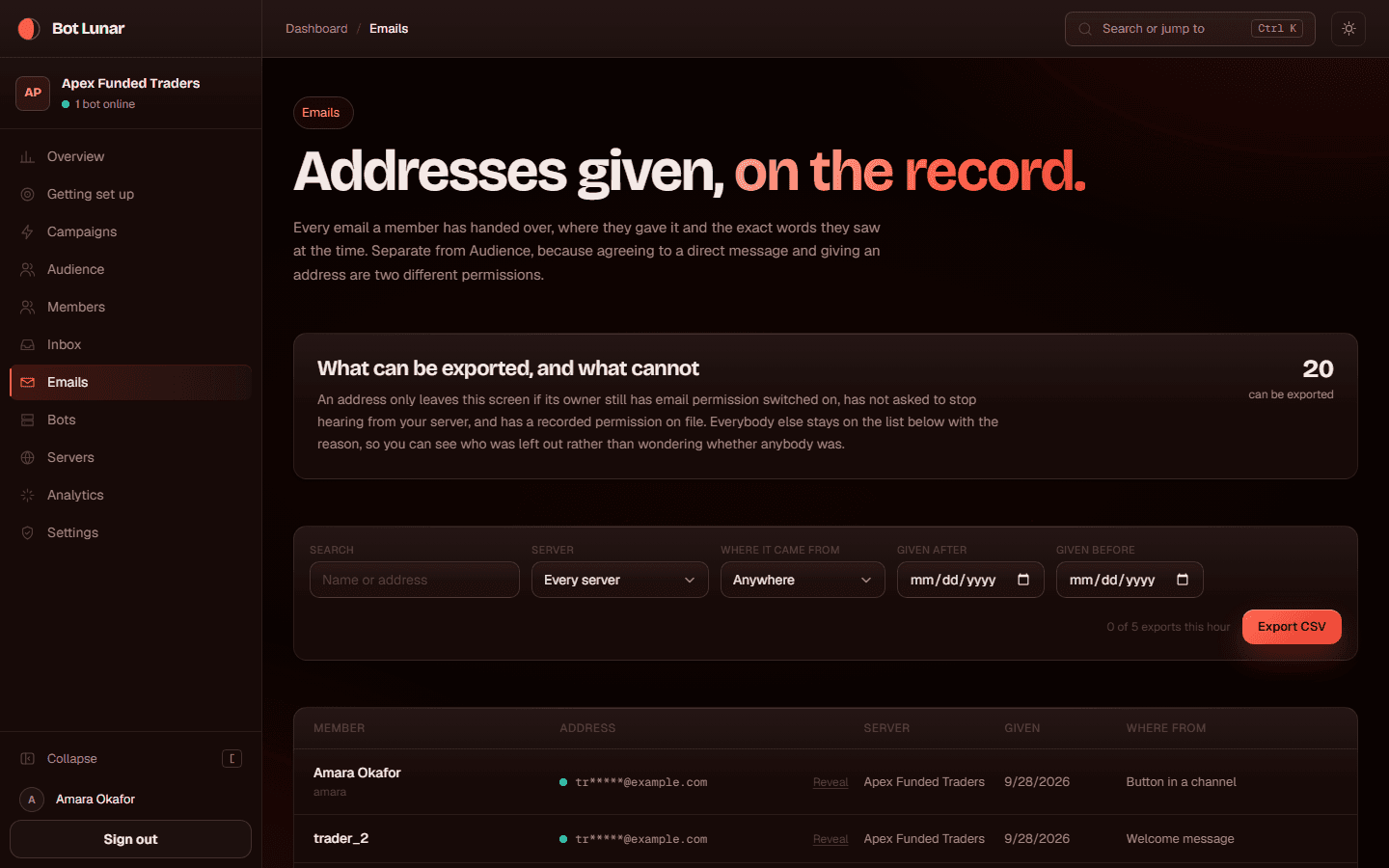
    3. 03Press Emails in the left sidebar to see what has been collected.

    Where to click

    The email option on the Opt in page, then Emails in the left sidebar.

    What you should see

    An Emails captured counter on the Opt in page, and the addresses themselves on the Emails page, each one showing where it came from.

    The emails page listing captured addresses and their source

    If it goes wrong

    Nothing is being collected.
    The option has to be on in the flow the member actually uses. Turning it on for the welcome message does nothing for members who opted in from the channel button last week.
    You want to email them now.
    Addresses are stored and not yet emailed to. Product email through Resend is a later stage. Collecting them now means they are waiting when it arrives, which is the whole point of doing it early.
  7. 16

    Check your opted-in count

    2 min

    This is the number that decides how big your first campaign is, and it is the number people misread. Members known is everybody we read from Discord. Members opted in is the ones you may actually message. The second is always smaller, often much smaller at the start, and that is not a fault. It is also split three ways by what the permission rests on, and those three are never added together into one reassuring total.

    What to do

    1. 01Press Audience in the left sidebar and look at the two numbers at the top.
    2. 02Read the split below them: said yes themselves, your rules screening declaration, and being in your server.
    3. 03Wait until you have enough opted in members to be worth messaging. There is no right number, but a campaign to eleven people teaches you nothing.

    Where to click

    The two counters at the top of the Audience page, and the permission split beneath them.

    What you should see

    Members known, members opted in, and the three bases listed separately with a count each.

    The audience page showing known and opted in counts with the permission split

    If it goes wrong

    Opted in is zero and you do not know why.
    The Audience page says why, in a sentence, with a link to the one place that fixes it. It is one of four things: no server, members never read, members read but the intent was off, or members read and simply nobody has said yes yet.
    You want to speed it up.
    Say something about the opt in button in your own voice, in a channel people read. That is the only honest lever. There is no list to upload, and there is no way to mark somebody as opted in by hand.

Part four, the flagship campaign

Writing it, checking it, and sending it. This is what you came here for, and by now everything it needs is in place. About forty minutes for your first one, and ten for the ones after that.

  1. 17

    Start from a template

    4 min

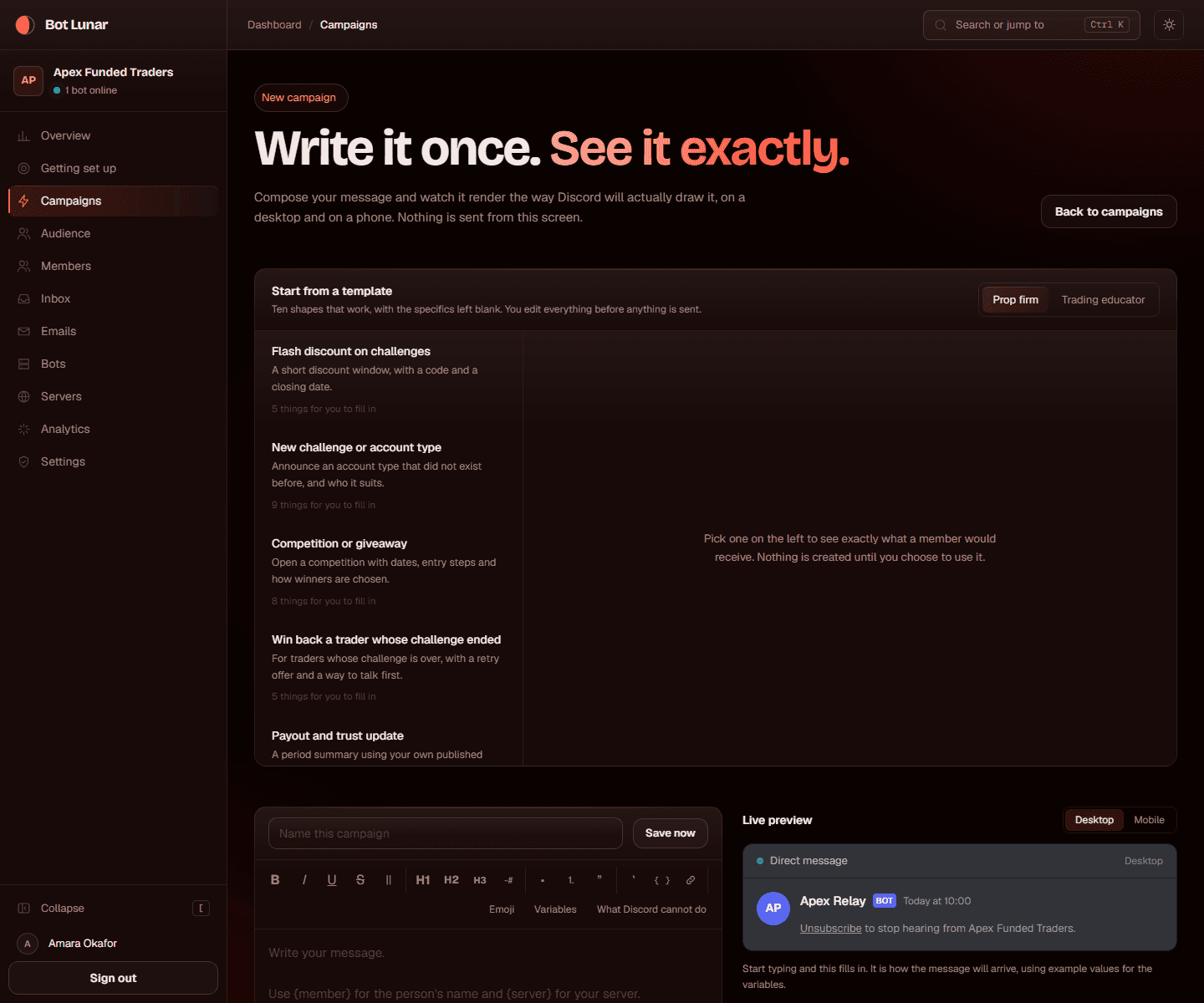
    A blank box is the hardest way to start. Ten templates ship with the product, five written for prop firms and five for trading educators, and every one of them leaves the specifics blank and states no figure of its own. Using one makes a draft you then edit, and editing your draft never changes the library.

    What to do

    1. 01Press Campaigns in the left sidebar, then Write a campaign.
    2. 02The template picker is at the top. Filter it to your niche, prop firm or trading educator.
    3. 03Press a template to preview it exactly as a member would receive it.
    4. 04Press to use it. That makes a draft.
    5. 05Give the campaign a name at the top. This is for you, not for members, so name it so you recognise it in six months.

    Where to click

    Campaigns in the left sidebar, then Write a campaign, then the template picker at the top of that page.

    What you should see

    A draft with the template's words in the editor, a risk line already in it, and blanks in square brackets waiting for you. The audience is set to a test to your own account, which is deliberate.

    The template picker on the composer page

    If it goes wrong

    None of the templates fits.
    Start from the closest one and rewrite the body, or write from scratch. The risk line and the structure are still worth keeping.
    You edited the template and want the original back.
    Start a new campaign from the same template. The library is untouched by anything you do to a draft.
  2. 18

    Fill in every placeholder

    6 min

    Every template leaves the specifics in square brackets, because a template that guessed your dates and your numbers would be a template that sent the wrong ones. A message that goes out with [DATE] still in it is the most embarrassing failure this product can produce, so the review panel refuses to let a campaign start while any bracket is left, and it counts the ones inside an embed too.

    What to do

    1. 01Read the body and replace every [BRACKETED] word with the real thing.
    2. 02Look at the embed as well, if the template has one. A blank left in an embed field counts the same as one left in the body.
    3. 03Read the risk line and make it yours if you want to. It is yours to edit from the moment you use the template.
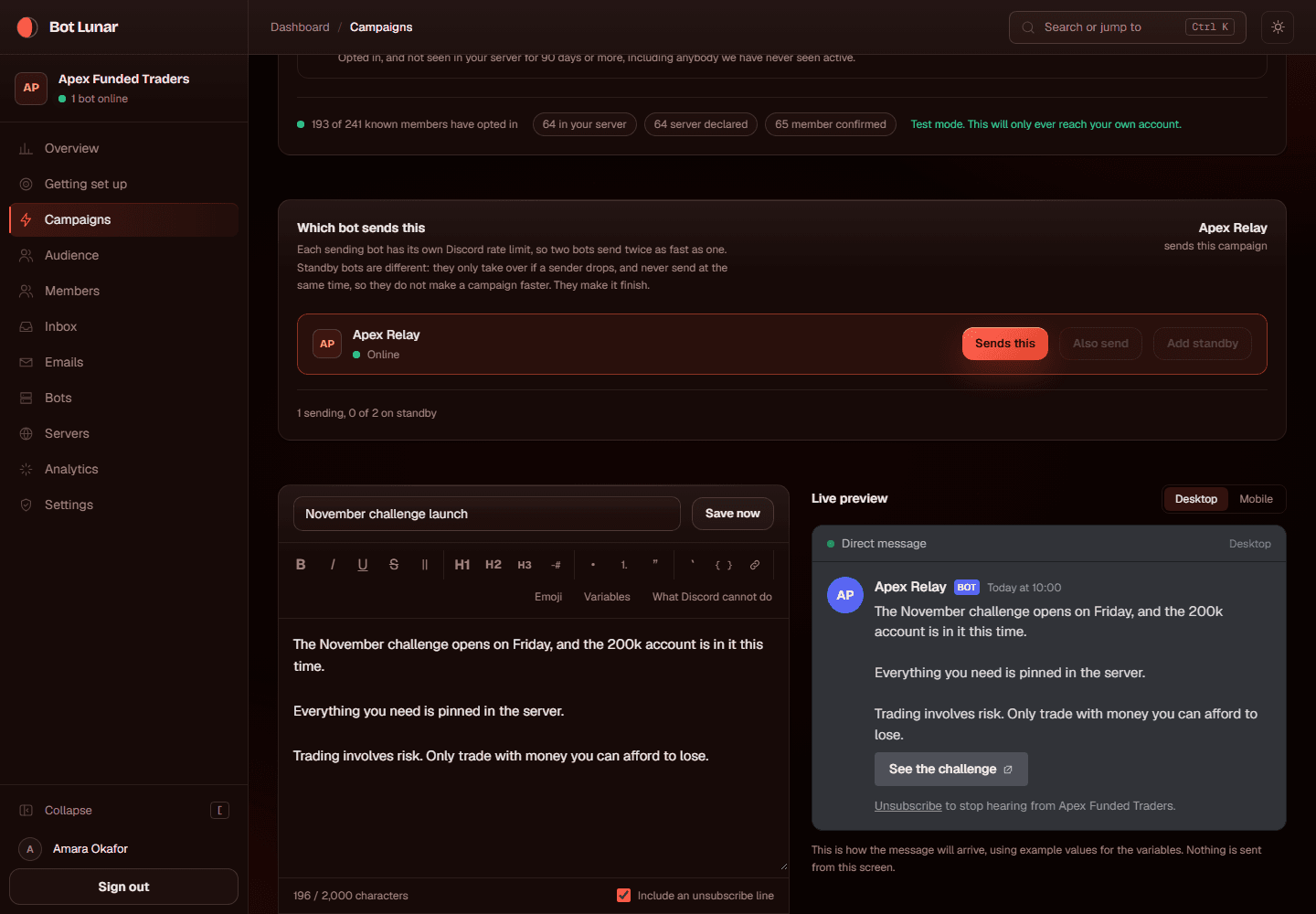
    4. 04Watch the preview on the right, which shows the message as Discord will render it.

    Where to click

    The message editor in the middle of the composer, and the preview to its right.

    What you should see

    No square brackets anywhere, and the Blanks to fill in check on the review panel turning green.

    The composer with the message body and live preview

    If it goes wrong

    The review says there are blanks and you cannot find them.
    It names them. Check the embed title, the embed fields and the button text, which are easy to scroll past.
    You want to use square brackets on purpose.
    Use a different marker. Round brackets, or quotation marks. Square brackets are how we find the blanks, so a real one would have to be checked by hand and that is the one thing we are trying to avoid.
  3. 19

    Add an image

    4 min

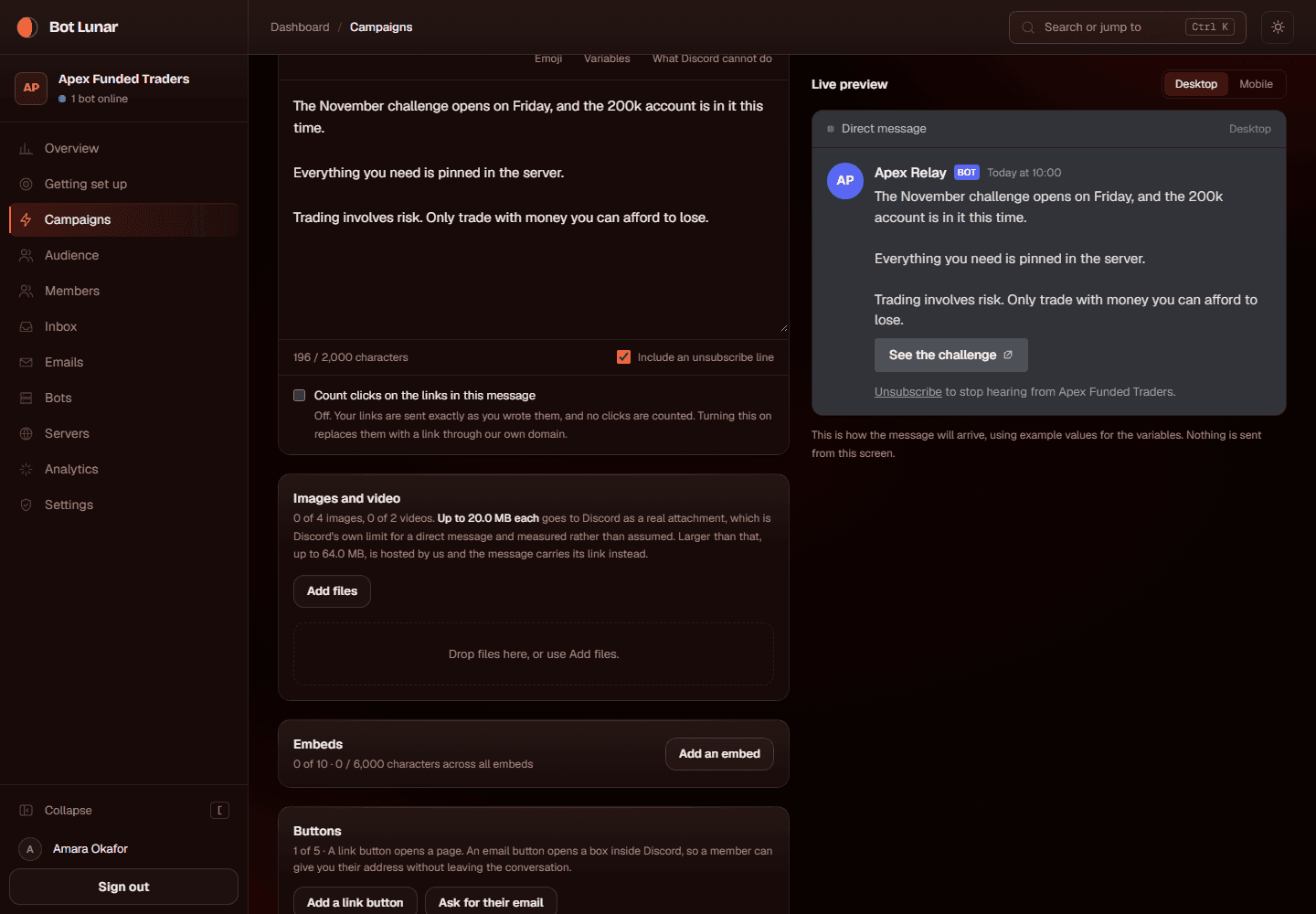
    A message with a picture gets read. Small files travel inside the message as a Discord attachment, which costs you no storage at all. Files too large for that are hosted by us and sent as a link instead, and only those count against your plan's storage allowance. You do not have to think about which is which, but it is worth knowing why some files count and some do not.

    What to do

    1. 01In the composer, use the media control to add a picture or a video.
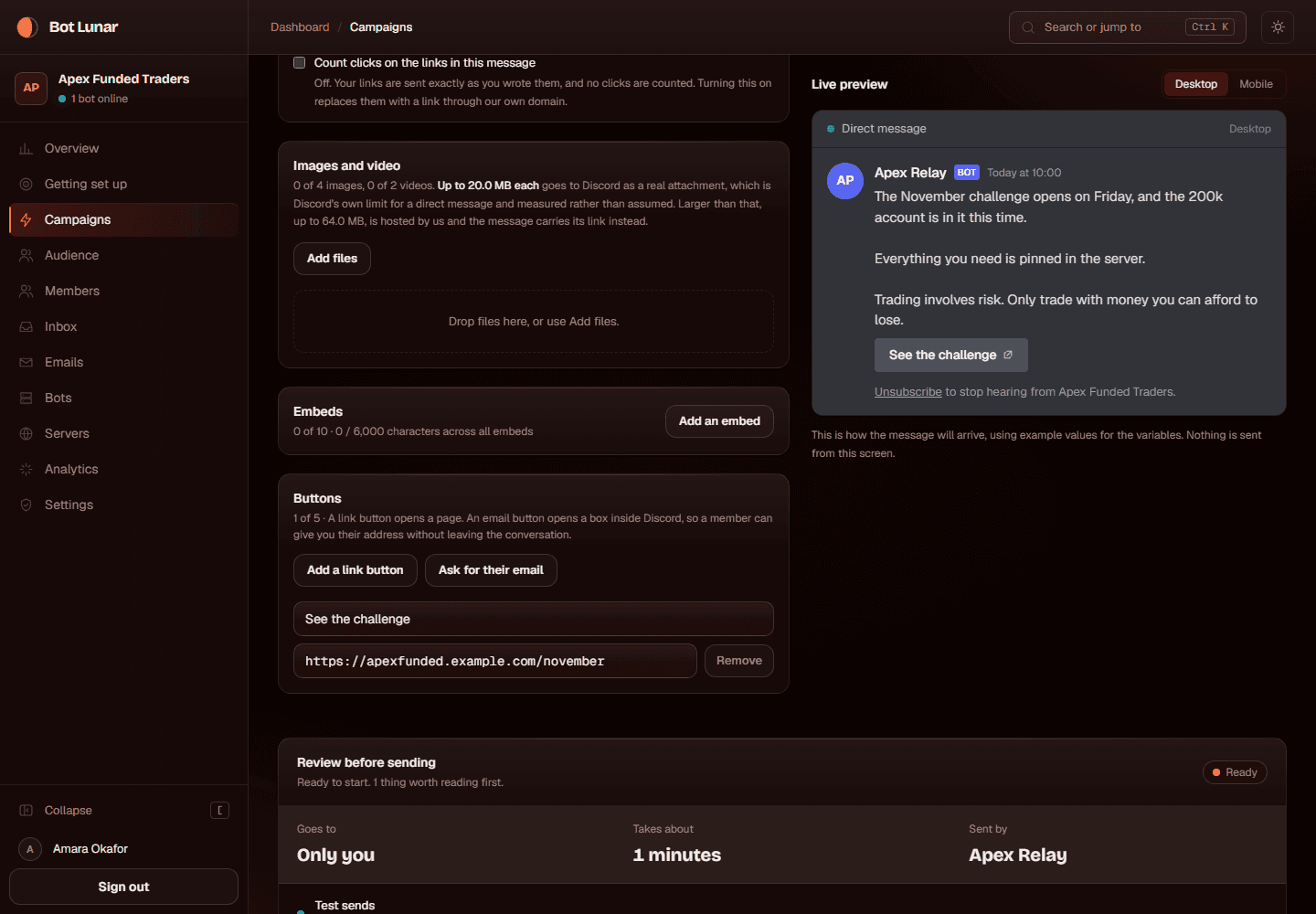
    2. 02Check the preview. If it went over Discord's own size limit you will see it as a link rather than inside the message.
    3. 03Keep it under Discord's limit if you can. It looks better and it costs you nothing.

    Where to click

    The media control in the composer, below the message editor.

    What you should see

    The image in the preview, and a Large files note on the review panel only if something had to be hosted.

    The composer with an image attached and shown in the preview

    If it goes wrong

    It says you are out of storage.
    Settings shows your storage allowance and how much is used. Remove media from older campaigns, or use a smaller file.
    The image does not appear in the preview.
    Discord does not accept every format. Use a PNG, a JPG or an MP4. Anything exotic will be refused and the review panel will say so.
  4. 21

    Choose your audience

    5 min

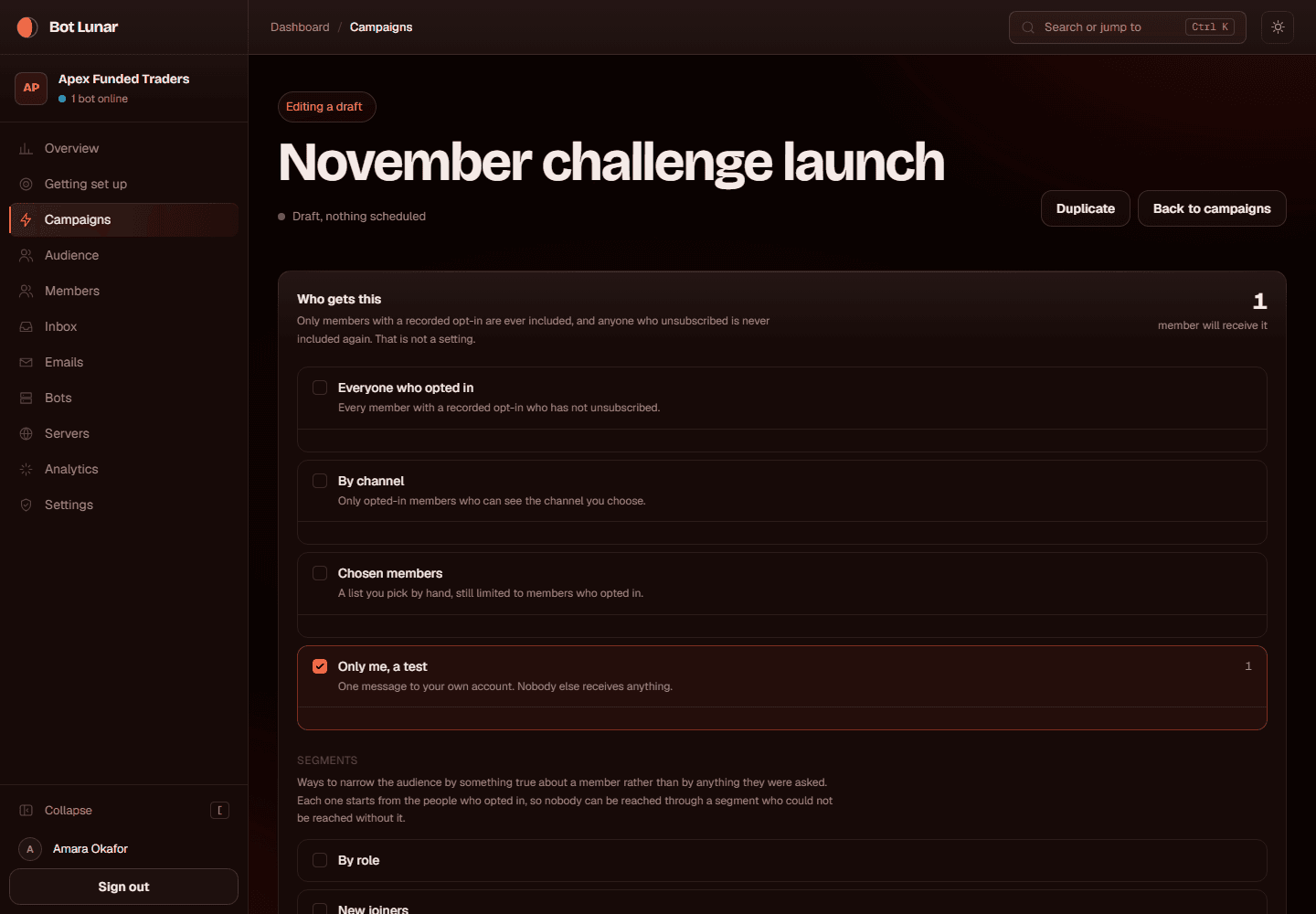
    Every audience rule starts from the same clause: opted in, and not unsubscribed. There is no arrangement of these rules that can reach somebody who has not opted in, which is the point. Roles, channels and segments narrow that group; they can never widen it. Most active members are messaged first, so if a send is interrupted the people most likely to care have already heard from you.

    What to do

    1. 01In the audience panel, pick how to choose. Everyone who opted in is the usual answer for a flagship campaign.
    2. 02Or narrow it: by role, by channel, a list you pick by hand, or a segment such as new joiners, active members or quiet members.
    3. 03Read the count. It updates as you choose.
    4. 04If you want the people who run your server left out of every campaign, that is a setting in Settings rather than something you do per campaign.

    Where to click

    The audience panel in the composer, on the right.

    What you should see

    A count of opted in members this campaign would reach, out of how many are known, and an estimate of how long the send will take.

    The audience picker with a live count

    If it goes wrong

    The count is zero.
    The review panel says which of the two reasons it is: nobody matches the rules you picked, or everybody who matches has already heard from you inside the frequency cap.
    A role rule counts nobody.
    Nobody who has opted in holds that role yet. The rule is working, the overlap is empty.
    You expected more people.
    Check the opted in number rather than the known number. Everything here is limited to the smaller one.
  5. 22

    Send a test to yourself

    4 min

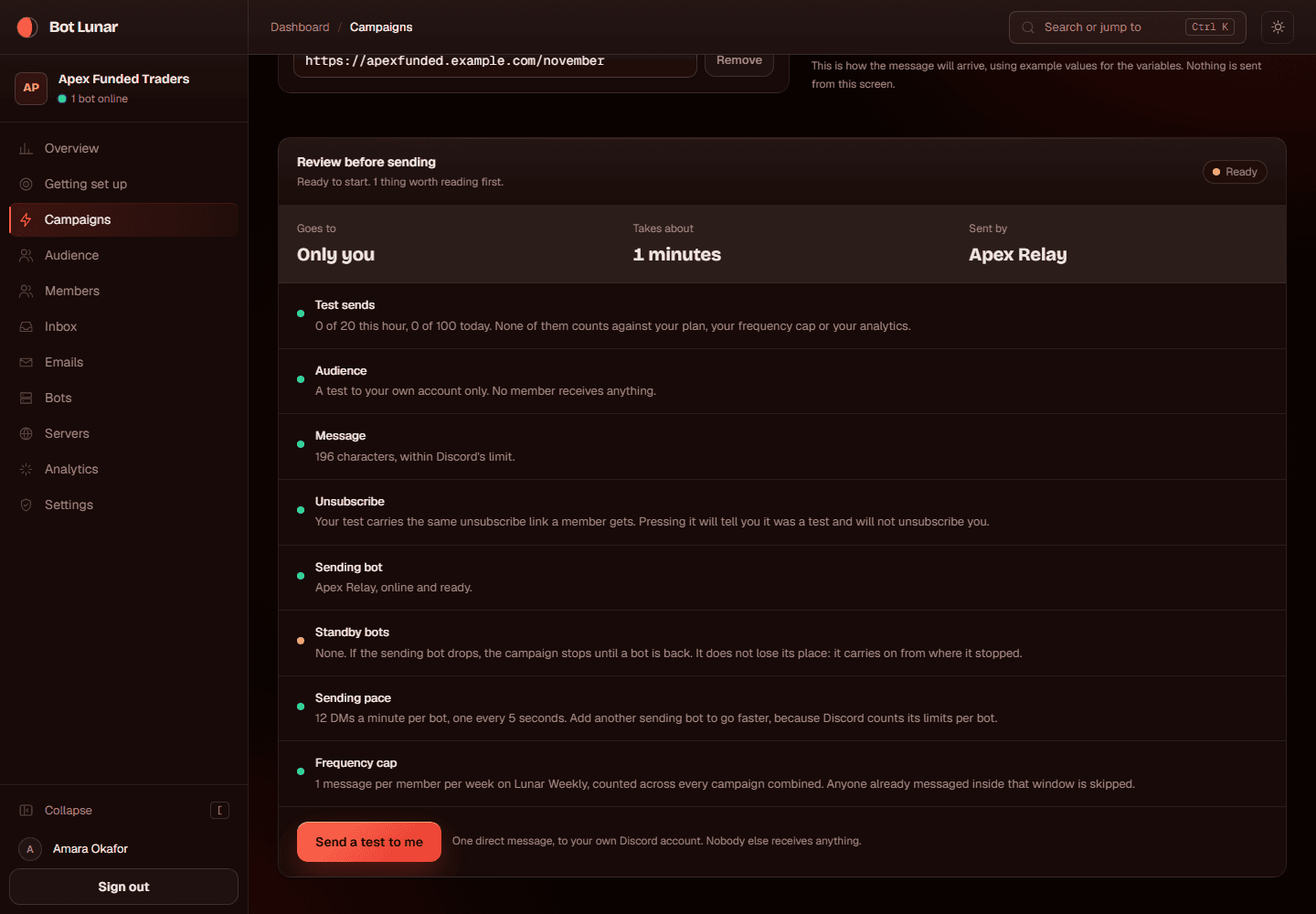
    The only way to know what a member will actually receive. A test goes to your own Discord account and nobody else's, and it costs you nothing: it is not counted against your frequency cap, your campaign allowance, your trial or any figure in your analytics, so you can send as many as it takes to get it right. It carries the same unsubscribe link a member gets, on the same address, and pressing that link tells you it was a test and does not unsubscribe you.

    What to do

    1. 01In the audience panel, choose Only me, a test. That clears every other rule, on purpose.
    2. 02Press Send a test to me on the review panel.
    3. 03Open Discord and read the direct message that arrives. Read it as a member would, not as the person who wrote it.
    4. 04Press the unsubscribe link. You should get a page saying it was a test.
    5. 05Go back, change anything that was wrong, and send another test. There is no reason to be sparing with these.

    Where to click

    The audience panel for Only me, a test, then the Send a test to me button on the review panel.

    What you should see

    The message in your own Discord direct messages, with your bot's name and picture on it, your image, your button, and an unsubscribe line at the bottom.

    The review panel with the send a test to me button

    If it goes wrong

    It says it cannot find your account among this server's members.
    You are signed in with a Discord account that is not in the server, or your members have not been read since you joined. Join with the account you signed in with, then read your members again.
    Nothing arrives.
    Check your own Discord privacy settings for that server. If you have direct messages from server members switched off, your own test cannot reach you either. The campaign page also says what happened to the test rather than leaving you guessing.
    It says you have reached your test send limit.
    Twenty an hour and a hundred a day per workspace. That limit is ours rather than your plan's, so get in touch and we will raise it. It exists to stop a loop, not to ration careful checking.
    You pressed unsubscribe and want to be sure you are still opted in.
    You are. The page says so, and nothing was written. Check the Audience page if you want to see it for yourself.
  6. 23

    Read the review panel

    4 min

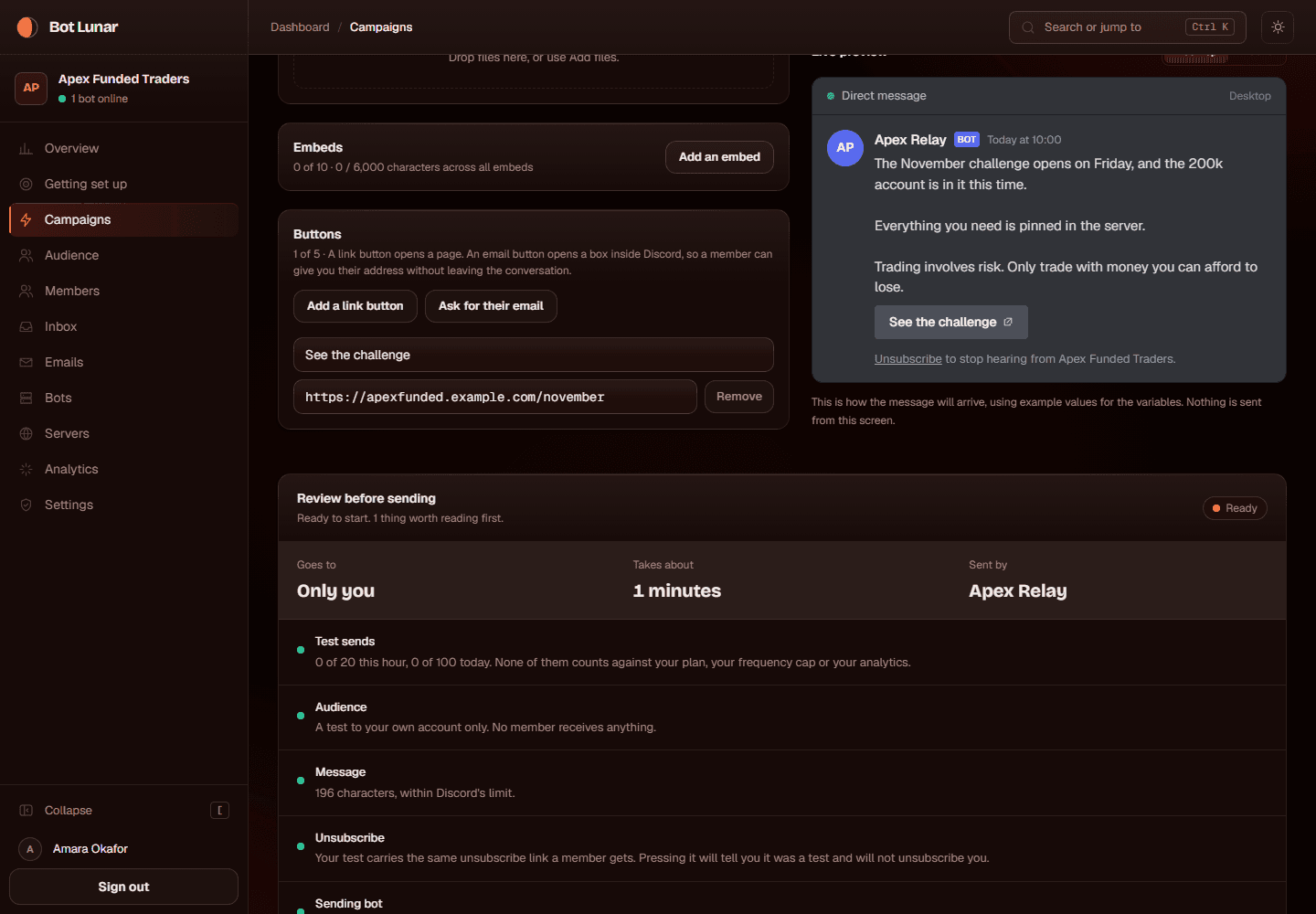
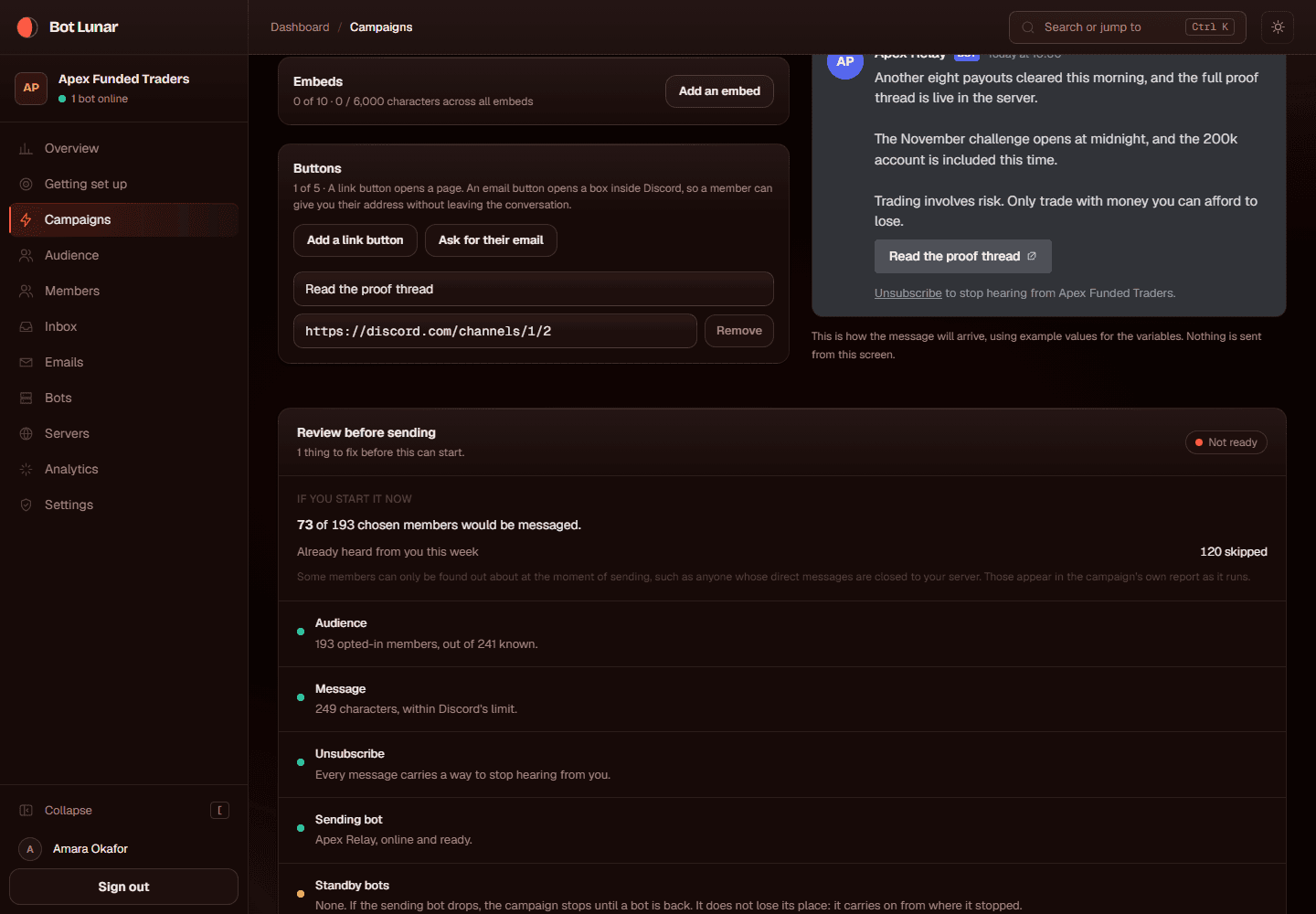
    The review is the last thing between a draft and real people. Every line on it is either something that would go wrong or a rule from our own sending policy. A blocker means it cannot start. A warning means it can, but somebody should have read it first. The estimate comes from the same pace the send will actually use, so the number on the panel is the number it takes.

    What to do

    1. 01Set the audience back to the real one. It is easy to leave it on the test.
    2. 02Read every line on the review panel, top to bottom. Do not skim it.
    3. 03Fix anything red. Read anything amber and decide whether you care.
    4. 04Look at the estimated finish time and the sending pace, and make sure both are what you expected.
    5. 05Check the frequency cap line, which says how many of your chosen members will be skipped because they have already heard from you.

    Where to click

    The review panel on the right of the composer.

    What you should see

    Every check green, the audience count, the sending bot named and online, the pace, and an estimated finish time.

    The review panel with every check green

    If it goes wrong

    Campaigns on the go is a blocker.
    Your plan allows a certain number scheduled, sending or paused at once. Wait for one to finish, or pause one.
    It says the unsubscribe line is off.
    Turn it back on in the composer. A promotional message has to carry a way out, and this is a blocker rather than a warning because one check in the interface is not a rule.
    All your chosen members are inside the frequency cap.
    Everybody you picked has already heard from you inside the cap, which on Lunar Weekly means the last 7 days rather than this calendar week, so starting would send nothing. Wait for the window to pass, or pick a different audience.
  7. 24

    Start it

    2 min

    This is the moment real people are messaged. Everything above exists so that this press is boring. Pressing it twice cannot message anybody twice: the record of what has to be sent is one row per member, protected by the database rather than by this code being careful, so a retry or a double press is simply refused.

    What to do

    1. 01Read the review panel one last time.
    2. 02Press start.
    3. 03Stay on the page for the first minute and watch the first few go out.

    Where to click

    The start button at the bottom of the review panel.

    What you should see

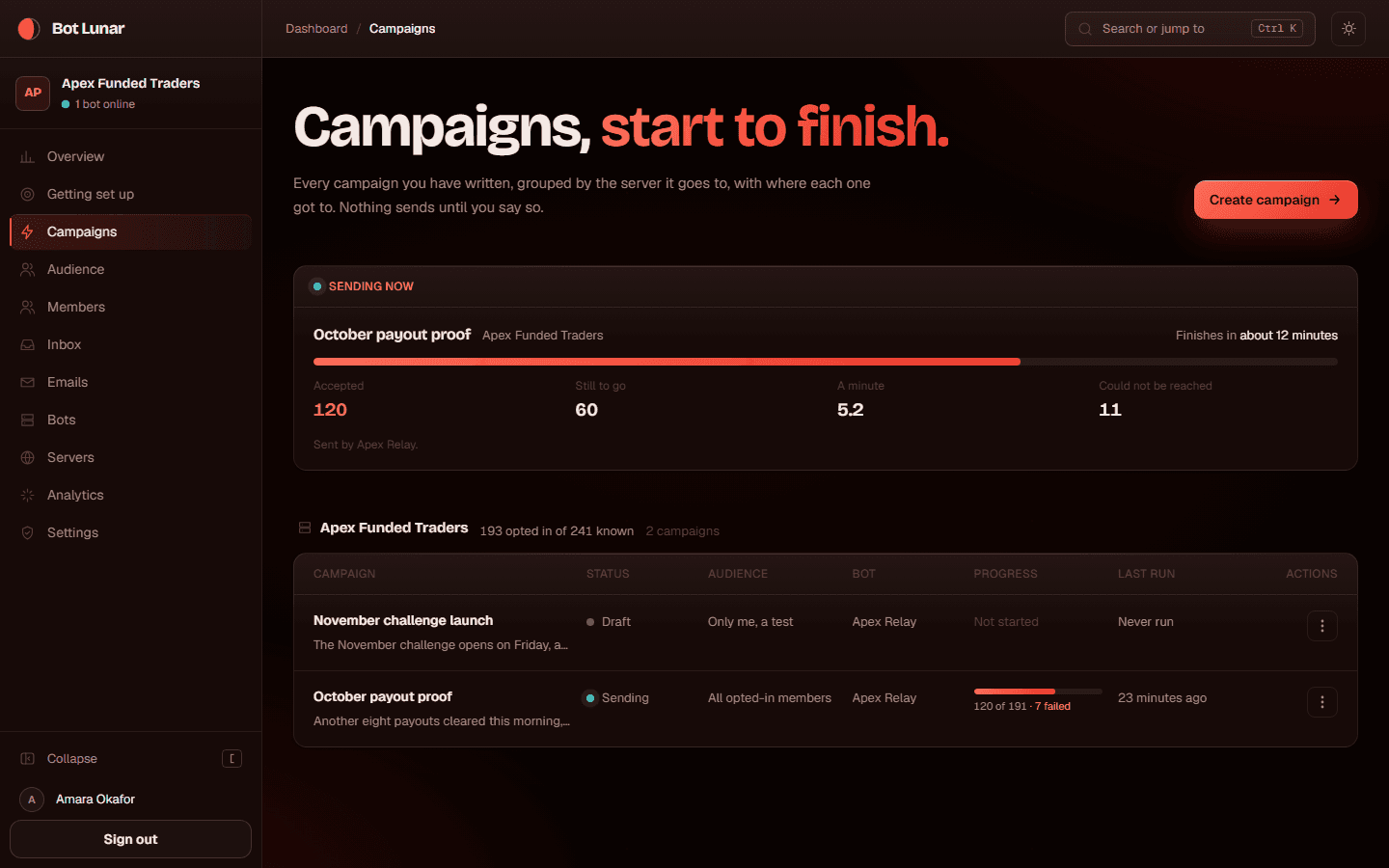
    The campaign moving to Sending, a progress bar, and a live count of how many have gone. The estimated finish time updates as it goes.

    A campaign sending with live progress

    If it goes wrong

    It refuses with a reason you did not see on the panel.
    The same review runs again at the moment you press, against the database rather than the screen, because a disabled button is not a rule. Something changed between loading the page and pressing. The reason it gives is the real one.
    You want to stop it.
    Press pause. It takes effect immediately, including for messages already waiting in the queue, not just the ones not yet started. Resume picks up exactly where it stopped, with no duplicate and no skip.
  8. 25

    Watch live progress

    3 min

    A send is not instant and is not meant to be. Each bot sends one message every five seconds, which is our own limit and deliberately slower than Discord would allow. A server's pace is the sum of its bots, so four bots in a server send up to forty eight a minute between them, each still one every five seconds. When Discord pushes back on one bot, that bot slows down on its own and the others carry on.

    What to do

    1. 01Stay on the campaign page, or come back to it.
    2. 02Watch the sent, failed and skipped counts.
    3. 03Watch the estimated finish time. It is worked out from what is actually happening rather than from what we intended.
    4. 04If it slows down, look for the note about Discord pushing back. That is the system working, not failing.

    Where to click

    The campaign's own page, reached from Campaigns in the left sidebar.

    What you should see

    Live counts, a progress bar, which bots are carrying it, and an estimated finish time.

    A campaign page with live sending progress

    If it goes wrong

    It says queued and nothing is moving.
    No worker is listening. The page says how many workers there are, because a message sitting at queued with nobody listening is stuck rather than waiting, and telling those two apart is most of the work. Get in touch if it stays at zero.
    Lots of failures saying DMs are closed.
    That is Discord, not you, and there is nothing to fix. Members can refuse direct messages from a server. It is normal for some percentage of any audience.
    It is slower than the estimate.
    Discord asked us to wait, and we waited exactly as long as it asked. The estimate updates. Connecting another bot to the server makes the next campaign faster, because Discord counts rate limits per bot token.
  9. 26

    Answer the replies

    5 min

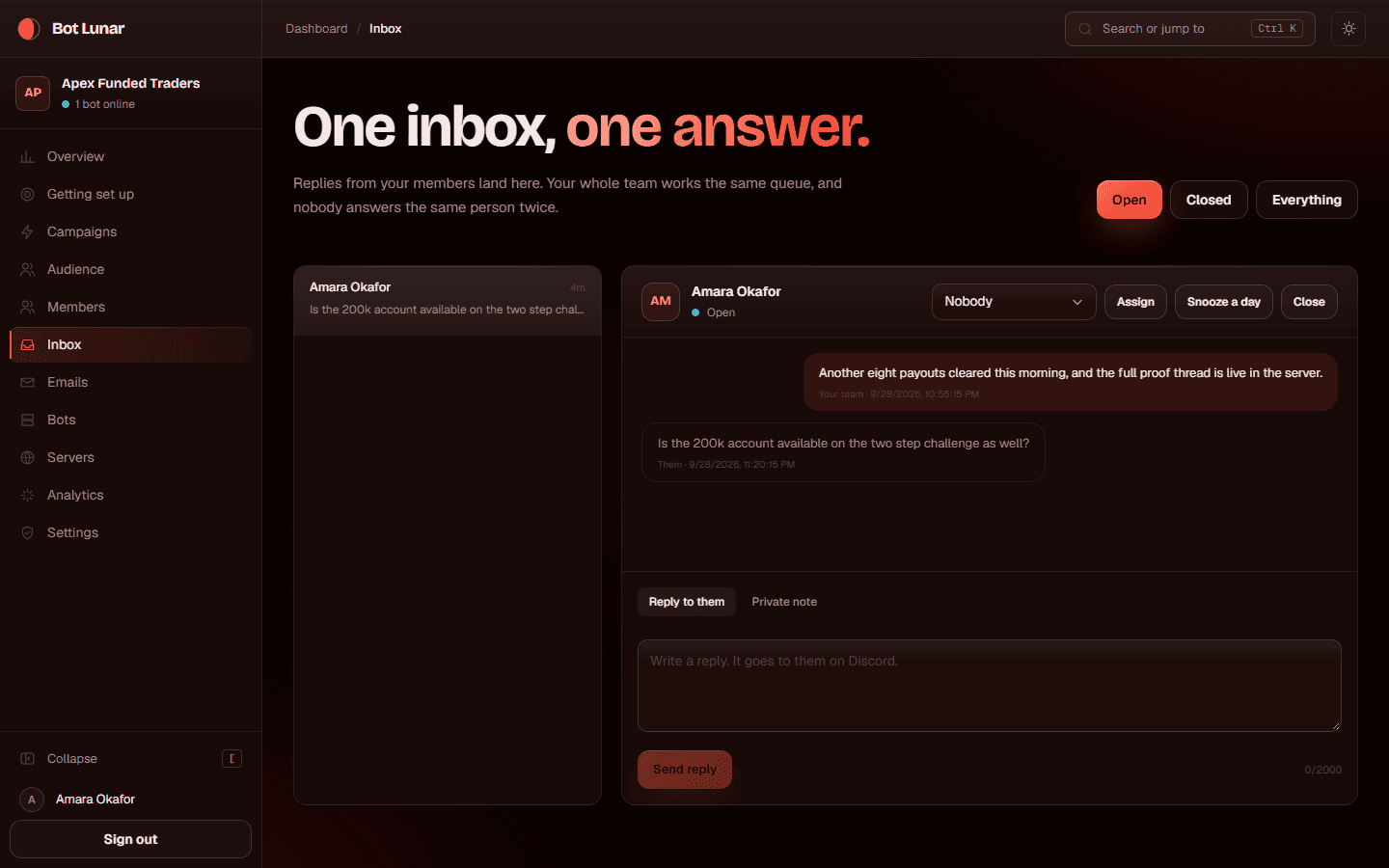
    People reply to direct messages, because a direct message looks like a person wrote it. Those replies land in the shared inbox rather than nowhere, which is the difference between a campaign and a conversation. The inbox is on both plans, in full: replies, notes, assignment, saved replies and closing a conversation.

    What to do

    1. 01Press Inbox in the left sidebar.
    2. 02Read the replies. The newest conversations are at the top.
    3. 03Reply from there. Your answer goes back through the same bot the member already heard from, so the conversation stays in one place for them.
    4. 04Close a conversation when it is done, so the next person looking at the inbox knows what is still open.

    Where to click

    Inbox in the left sidebar.

    What you should see

    Conversations, newest first, with the member's name and the message they sent.

    The shared inbox with member replies

    If it goes wrong

    No replies appear at all.
    The reply listener is a separate live connection from sending, and the Bots page says whether it is connected. It also needs Message Content Intent switched on in the Developer Portal, which is the usual cause.
    Somebody replies asking to be removed.
    Point them at the unsubscribe link in the message, or they can press it themselves. Unsubscribing there is permanent and immediate, and no later sync ever brings somebody back.
  10. 27

    Read the analytics afterwards

    5 min

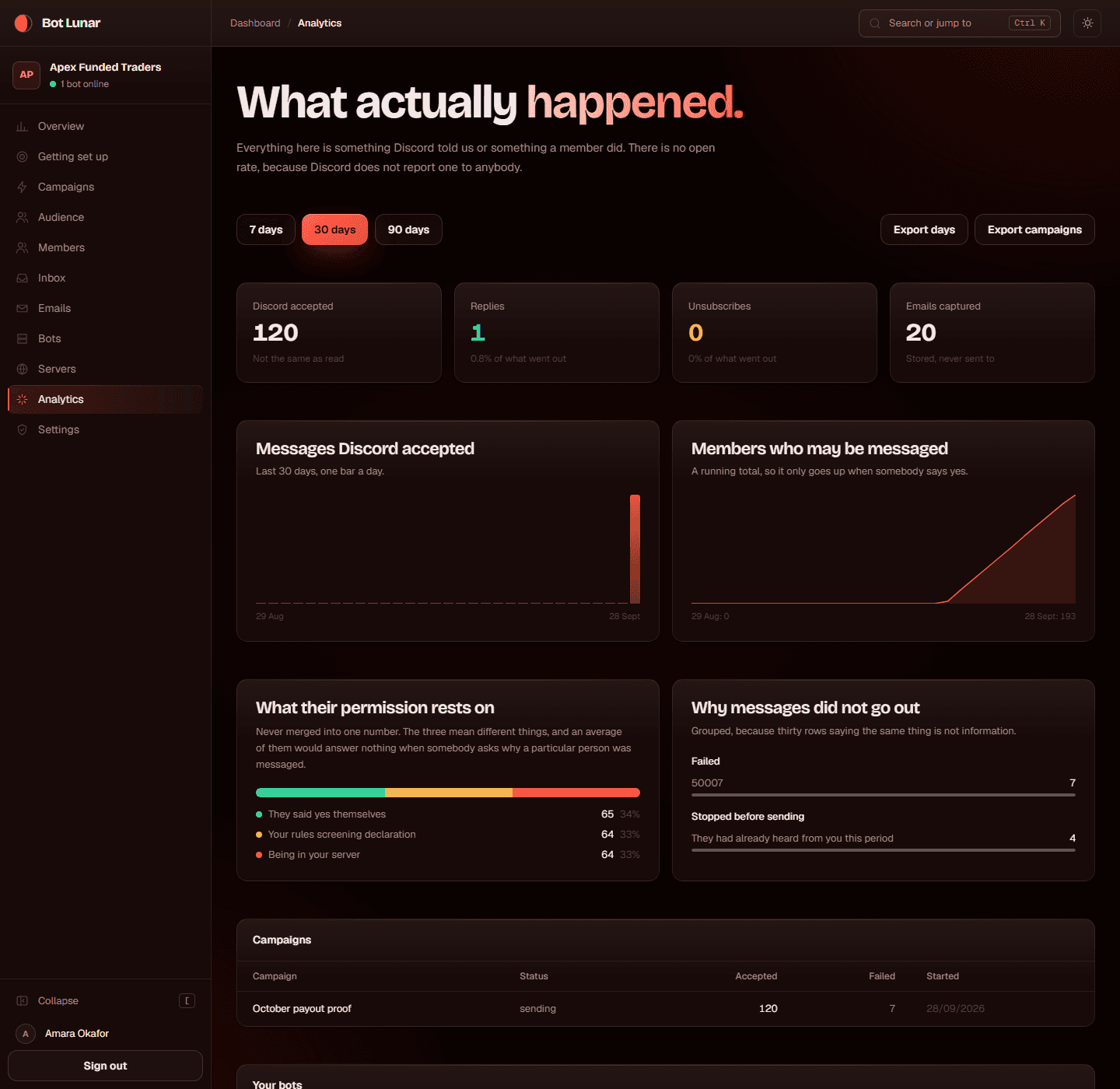
    Everything on the analytics page is either something Discord told us or something we measured while sending, and the two are labelled differently. There is no delivery rate and no open rate, not because they would be hard to build but because they would be invented. Discord confirms it accepted a direct message. It never says anybody received one and never says anybody read one. A number you cannot act on is worse than no number.

    What to do

    1. 01Press Analytics in the left sidebar, or open the campaign and read its own report.
    2. 02Read Discord accepted, which is what actually happened, and note that it is not the same as read.
    3. 03Read the failures, grouped by reason, and the skips, grouped by reason. Those two mean different things: a failure is an attempt Discord turned down, a skip is a decision of ours such as the frequency cap.
    4. 04Read replies, which is a real thing members did, and clicks if you had tracking on.
    5. 05Read the permission split, which is never merged into one number.

    Where to click

    Analytics in the left sidebar, or the report on a campaign that has run.

    What you should see

    Accepted, failed, skipped, replies, clicks, which bots carried it, how fast it actually went, and what permission each send relied on.

    The analytics page with accepted, failed and skipped counts

    If it goes wrong

    You want an open rate.
    There is not one and there will not be one. Nobody can measure whether a Discord direct message was read, and any tool that reports it is reporting something it cannot know.
    A test send you made is not in the numbers.
    Correct, and deliberate. Tests count towards nothing, including analytics. A test campaign's own report still shows what happened to that test, labelled as a test.
    Accepted is lower than your audience count.
    The difference is in the failures and the skips, both grouped by reason on the same page. Add the three up and they should match what was attempted.

Troubleshooting

Only the failures we have actually hit, with real servers. A troubleshooting section full of imagined problems looks thorough and helps nobody, and it buries the eight things that really do go wrong under thirty that do not.

Your member list is empty, or almost empty

What it looks like

You read your members, it finishes, and BotLunar says zero members. Or it says forty when Discord says twelve thousand. Every audience shows nobody and the product looks broken.

Why

The Server Members Intent is switched off. Discord keeps it off for every new bot and no invite link can turn it on. Without it Discord simply does not tell us who is in your server, and there is no error, which is why this is the hardest one to spot.

The fix

  1. 01Open discord.com/developers/applications and click your application.Open discord.com/developers/applications and click your application.
  2. 02Click Bot in the left sidebar and scroll to Privileged Gateway Intents.
  3. 03Switch on Server Members Intent, and Message Content Intent while you are there.
  4. 04Press Save Changes.
  5. 05In BotLunar, open Bots and press Check now on that bot.
  6. 06Open Audience and press Read members again. Nothing was lost.

Missing permissions on the Bots page

What it looks like

The bot's status is amber and says Missing permissions, and names one or more of them. A channel opt in message will not post, or a channel audience counts nobody.

Why

Somebody unticked a box on Discord's consent screen when the bot was invited, or the bot's role was edited afterwards. We read what the bot can actually do from Discord rather than assuming what the invite asked for, which is why this shows up at all.

The fix

  1. 01Read the message. It names each missing permission and what it is for.
  2. 02Either use the Add it to your server link again, which asks for all of them.
  3. 03Or in Discord, open Server Settings, Roles, find the bot's role and grant the named permissions.
  4. 04If it is about one channel only, check that channel's own permissions. Channel level settings override server level ones.
  5. 05Press Check now in BotLunar.

Failures saying their DMs are closed

What it looks like

A campaign finishes with a block of failures all giving the same reason: their DMs are closed to your server, or they blocked the bot.

Why

Discord lets anybody refuse direct messages from members of a server, and many people have it switched off by default. This is the member's own setting and neither you nor we can change it.

The fix

  1. 01Nothing, for those members. This is normal and every Discord audience has some.
  2. 02Collect email addresses as well, so you have a second way to reach the people who want to hear from you.
  3. 03Do not treat it as a delivery rate. It tells you nothing about whether the ones Discord accepted were read.

Members skipped by the frequency cap

What it looks like

A campaign reports a lot of skips saying they had already heard from you inside the frequency cap. Or the review panel refuses to start, saying everybody chosen is inside the cap.

Why

One message per member in any 7 days on Lunar Weekly, one in any 24 hours on Lunar Daily, counted across every campaign and every bot together rather than per campaign. A week here means the last 7 days counted back from each message, not Monday to Sunday: somebody messaged on Monday at 10:00 can be messaged again from the next Monday at 10:00. This is the rule that stops faster sending turning into more messages per person, and it is doing its job.

The fix

  1. 01Planning several campaigns in one week? Split your audience first, from the audience picker, into parts that never overlap, and aim each campaign at one part. Or tick Not messaged this week, which leaves out everybody already messaged or waiting in another campaign.
  2. 02Wait for the window to pass. The report says the soonest each member could be messaged again.
  3. 03Or choose a different audience, made of people you have not messaged recently.
  4. 04Connecting more bots does not help. More bots make a campaign finish sooner, they never let one member hear from you more often.
  5. 05If you have a genuine reason to need a higher cap, get in touch. An override is possible, it always has an end date, and your dashboard will say what it is and when it ends while it is in force.

It will not start because of blanks to fill in

What it looks like

The review panel has a red line about blanks, and you cannot see any square brackets in the message.

Why

A template leaves its specifics in [SQUARE BRACKETS], and the review counts the ones inside an embed and on a button as well as the ones in the body. Those are the easy ones to scroll past.

The fix

  1. 01Check the embed title and every embed field.
  2. 02Check the button text and the button link.
  3. 03Read the whole preview rather than the editor, because the preview shows everything a member would see in one place.
  4. 04If you want real square brackets in your copy, use a different marker. Square brackets are how the blanks are found.

A button with no real link

What it looks like

The review panel warns that a button has no real address. Or a campaign went out and the button is simply not on the message.

Why

Discord refuses a button whose address it does not accept, and it refuses it silently, so the message arrives with the call to action missing rather than with an error.

The fix

  1. 01Use the full address including https at the front. A bare domain will not do.
  2. 02Do not use an internal path or a relative link.
  3. 03Send a test to yourself and press the button. That is the only way to know for certain.
  4. 04If a campaign already went out without it, the report lists the buttons that were dropped, so you know your call to action was not there rather than wondering why nobody pressed it.

New members are not getting the welcome message

What it looks like

The welcome message is written, it looks right in the preview, and the From the welcome message counter stays at zero while people keep joining.

Why

Three possibilities, and the Opt in page says which. The flow is written but not switched on. Rules screening is not enabled in Discord, so Discord never tells us anybody finished it. Or the reply listener is not connected, which is a separate live connection from sending.

The fix

  1. 01Open Audience, Opt in, and check the switch is actually on.
  2. 02In Discord, open Server Settings and make sure Community and Membership Screening are enabled.
  3. 03Open Bots and check whether the bot is listening, which is shown separately from whether it can send.
  4. 04Make sure Message Content Intent is on in the Developer Portal.
  5. 05Test it by joining with a second Discord account and completing the screening.

Buttons in your messages say the application did not respond

What it looks like

A member presses Unsubscribe, or any other button in a direct message, and Discord shows them a red banner saying the application did not respond. Everything else about the bot looks perfect: it is online, campaigns send, replies arrive in your inbox.

Why

Almost always one of two things, and they look identical from the outside. Either the reply listener is not running, which is our end, or your application has an Interactions Endpoint URL set in the Discord Developer Portal, which is yours. Discord offers two ways to deliver a button press and they are mutually exclusive: setting that URL does not add a second one, it replaces the connection we listen on, so the presses stop reaching us entirely.

The fix

  1. 01Open the Bots page. If the bot's row has a red note about an Interactions Endpoint URL, that is the cause.
  2. 02Go to discord.com/developers/applications and open your application.Go to discord.com/developers/applications and open your application.
  3. 03On General Information, clear the Interactions Endpoint URL and save.
  4. 04Come back and press Check now on the bot's row. The note should go.
  5. 05If there is no such note, the listener is down at our end rather than anything you have done. Get in touch: we are alerted when it happens, and sending is unaffected while it is.
  6. 06The unsubscribe link at the bottom of every message keeps working either way. It is a plain web link and needs nothing running to be followed.

This bot is already connected somewhere else

What it looks like

You paste a token and BotLunar refuses it, saying that bot is already connected inside BotLunar.

Why

A bot belongs to exactly one server in exactly one workspace. That is a rule rather than a limit: a bot shared between two servers would mix two audiences' rate limits, two reputations and two sets of consent, and one ban would take both down. We will not tell you where it is connected, because that would leak somebody else's setup.

The fix

  1. 01Create a second bot in the Discord Developer Portal. It takes five minutes and the steps are identical.
  2. 02Remember to switch on the Server Members Intent on the new one too.
  3. 03If you connected this bot to a different server of your own earlier and want it here instead, remove it from that server's Bots page first.
  4. 04Separate bots are also faster, because Discord counts rate limits per bot token.

Signing in stops at "Invalid OAuth2 redirect_uri"

What it looks like

You press Continue with Discord and, instead of Discord's approval screen, Discord shows a plain page saying Invalid OAuth2 redirect_uri. You never get to approve anything and nothing happens in BotLunar.

Why

This one is on our side, not yours. Discord only sends you back to an address we have registered with it, and the address this copy of BotLunar asked for is not on that list. It happens when we move the app to a new address. There is nothing wrong with your Discord account.

The fix

  1. 01Nothing to change on your side, and nothing about your account has been touched.
  2. 02Tell us at the support address, with the time you tried and the address in your browser's bar when it happened.
  3. 03We add the missing address in Discord's developer settings, which takes effect at once.
  4. 04Then press Continue with Discord again. There is no need to clear anything or sign out of Discord.

Glossary

Pairs of words that get confused, and one thing that does not exist. Every one of these has caused a real misunderstanding, which is why they are here rather than a list of obvious definitions.

Known members, and opted-in members
Known members are everybody we read from your Discord server. Opted-in members are the ones you may actually message. Reading somebody is not permission to message them, and the second number is always smaller, often much smaller at the start. Every audience rule in the product is limited to the second number, and there is no way to move somebody from the first to the second by hand.
Discord's member total, and synced members
Discord's own total, the one on your server, counts everybody including bots and people Discord still has cached. Synced members is what Discord actually handed us when we read your member list. A gap of a few per cent is normal. A gap of ninety per cent is the Server Members Intent being switched off.
Accepted by Discord, and delivered
Accepted means Discord took the message from us. That is all it means, and all we will ever claim. Delivered would mean it reached somebody, and Discord gives no delivery receipt for a direct message, so nothing in this product ever sets it. We keep the two words apart everywhere rather than merging them into one friendlier number.
Why there is no open rate
Nobody can measure whether a Discord direct message was read. There is no tracking pixel in a Discord DM, no read receipt a bot can see, and no API that reports it. Any tool showing you an open rate for Discord direct messages is showing you a number it cannot know. We would rather be the one that says so.
The three permission bases, never merged
They said yes themselves is a member pressing a button, and it is the strongest. Your rules screening declaration is your word about your own server, which is weaker. Being in your server is the weakest, and applies when no declaration is on file. We record which one every single message relied on, copied at the moment of sending so it cannot change afterwards, and we never add the three together, because an average of them would answer nothing if anybody ever asked.
A failure, and a skip
A failure is an attempt we made that Discord turned down, such as a member whose direct messages are closed. A skip is a decision of ours, made before we tried, such as the frequency cap or somebody who had unsubscribed. They are counted separately and grouped by reason, because one is about Discord and the other is about our own rules, and the fix is different.
A backup bot, and a sending bot
A sending bot sends alongside the main bot, on its own Discord rate limit, which is what makes a campaign finish sooner. A backup bot waits, and takes over only if the main bot goes offline, so it never sends at the same time and never makes anything faster. Backups make a campaign finish. Extra sending bots make it finish sooner.
A test send
One message to your own Discord account and nobody else's. It costs you nothing: not the frequency cap, not your campaign allowance, not your trial, not one figure in your analytics. It carries the same unsubscribe link a member gets, and pressing that link says it was a test and changes nothing. It has a limit of ours rather than yours, twenty an hour and a hundred a day, which exists to stop a loop rather than to ration careful checking.


Something here not match what you are looking at? Tell us. The screenshots are captured from the real app rather than drawn, so if one is out of date it means the product changed and this page has not been refreshed yet.

Ready to start?

Signing in takes two minutes and messages nobody. You can read the rest of this guide with the dashboard open beside it.